
General EHR consists of the following:
- Health Record Dashboard
- Case Sheet
- Treatment Plan
- Lab Reports
- Radiology
- Attachments
- Bills
- Growth Chart (Available for Pediatric case sheet only)
- Health Record Dashboard:
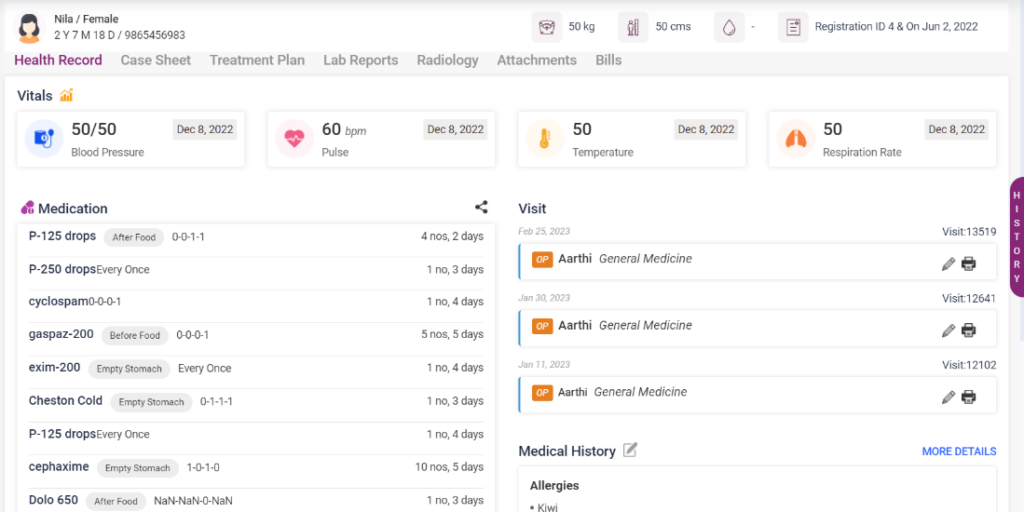
The Health Record Dashboard systematically contains the following details.
- Vitals- Recent vitals, including BP, pulse, temperature, and respiration rate of the patient, were taken recently. On clicking each of the entrails, the graph of the particular vital will be displayed in a pop-up box.
- Medication- Details of the medicines the patient takes with medicine count and several days.
- Visit- Visit the history of the patient. On clicking print, the summary can be printed. On clicking edit, we can edit the details entered.
- Medical History- Click on the edit icon next to the heading. The medical history page consists of the following tabs,
- Allergies – Select the allergy, enter the number of days, select the severity, enter the onset and notes, if any, check the Is active checkbox and click the Add Energy button. The entered details can be edited or deleted using the edit and delete icons.
- Social Habits – Select the social habits, enter the number of days and notes, if any, and click the “Add Social Habit” button. The entered details can be edited or deleted using the edit and delete icons.
- Medical History – Select the medical history type, and medical history, enter the number of days, start date, end date, and notes, then click on the “Add Medical History” icon. The entered details can be edited or deleted using the edit and delete icons.
- Family Medical History – Select the medical history and relationship, enter the number of dates and notes, if any, and click on the “Add Medical History” icon. The entered details can be edited or deleted using the edit and delete icons.
- Menstrual – Enter the age at Menarche, select the bleeding, frequency, duration of flow, regularity of bleeding, and spotting, enter the menses days, menses cycle days, and menses average cycle, then click on the save button.
- Current Medication – Select the medication, start and end dates, and click the “Add Current Medication” button.
- Click on the “View Summary” icon on the right corner to view the entered medical history details in the summary.
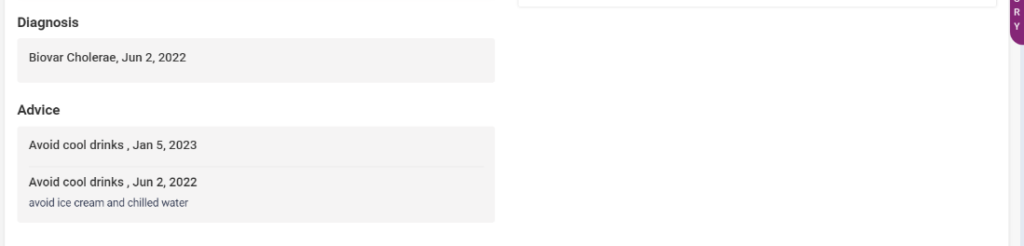
- Diagnosis- Any diagnosis added in the case sheet for the patient will be displayed here.
- Advice- Advice provided for the patient by the Physician in the case sheet will be displayed here.
- History Button- On clicking the history in the right corner of the page, the patient’s visit history will be displayed.
Health Record dashboard
- Case Sheet:
A Case Report is a detailed report of a patient’s symptoms, signs, diagnosis, treatment, and follow-up.
Formal communication between health care professionals, such as doctors and nurses, regarding a patient’s clinical information.
Open a new case sheet by clicking on the doctor’s name under the case sheet tab. The user can open the old case sheets of the patient also.
New Case Sheet:
There are a few icons present in this sheet,
- Patient Appointment icon – It directs to the patient appointment page of the particular Physician.
- Doctor Dashboard icon – It navigates to the doctor’s dashboard.
- Doctor Schedule icon – It refers to the doctor schedule page.
- View Summary icon – The summary of the case sheet will be displayed.
- Print icon – The print page of the case sheet will be displayed.
- Settings icon – The tabs needed in the case sheet can be selected in the displayed pop-up box. The new case sheet contains the following details to be entered by the user,
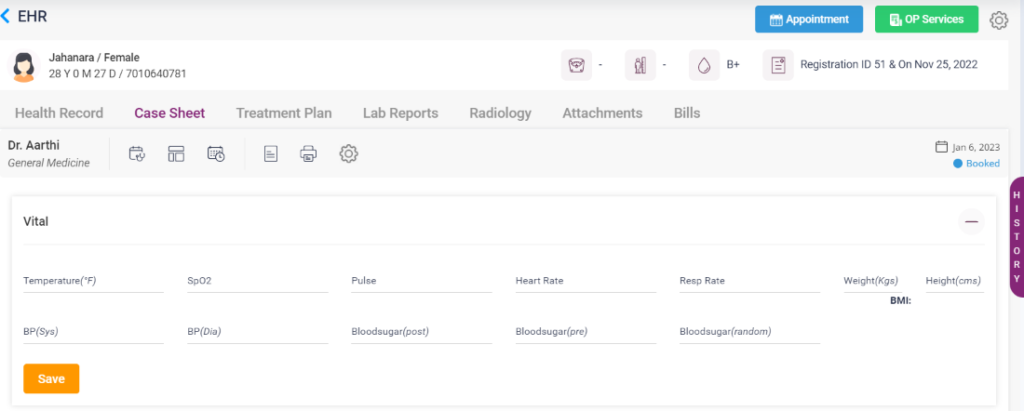
1. Vitals- The vitals section includes, Temperature, BP(systolic and diastolic), pulse, Respiration rate, heart rate, blood sugar(pre, post, and random), SPO2, Weight, and height. After entering these data, the user can click the “Save” button.
Screenshot:
EHR Case Sheet- Vitals
2. Chief Complaints- In this section, select the patient’s chief complaint from the drop-down list and select the period. Enter the present history and notes if needed. Click the “Add” button on the right, and the chief complaint entered will be saved and displayed on top. Click on the added chief complaint to edit or delete it.
EHR Case Sheet- Chief Complaints

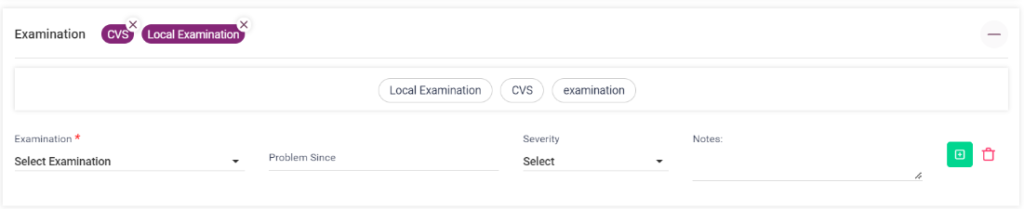
3. Examination- The user can select the examination from the drop-down list. Enter the period, severity, and notes if needed. Click on the “Add” button to display the examination added. Click on the added examination to edit or delete it.
EHR Case Sheet- Examination
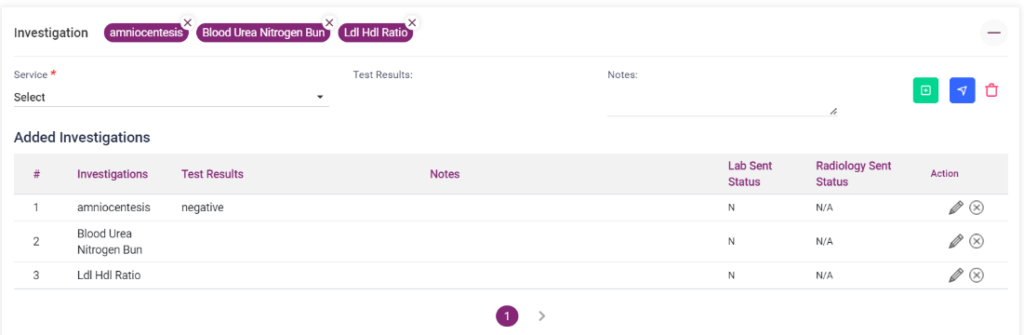
4. Investigation- Select the investigation from the service drop-down box in this section. Enter the test results and notes if needed. Click on the “Add” button to display the investigation added. Click on the added investigation to edit or delete it.
EHR Case Sheet- Investigation
5. Diagnosis- The user can select the diagnosis from the diagnosis name drop-down list and select the high-risk check box if the diagnosis is critical. Enter the treatment given in the field if needed. Click on the “Add” button to display the diagnosis added. Click on the added diagnosis to edit or delete it.
EHR Case Sheet- Diagnosis

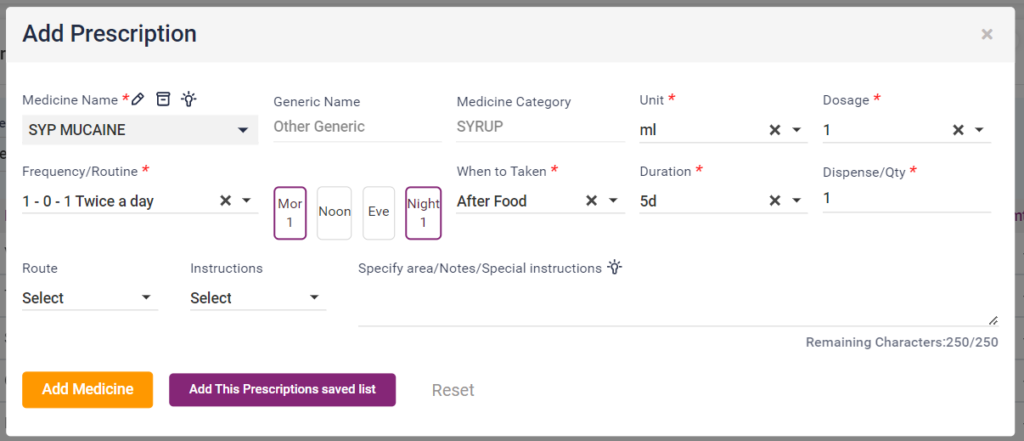
6. Prescription-
- Favorite Medicine: On clicking the drop-down list, it shows the added favorite medicines.
- Medicine Name: Select the medicine name from the drop-down list.
- Category and generic name: This field gets automatically loaded from the medicine.
- Dosage level: Select the dosage level from the drop-down list.
- Unit: Select the unit from the drop-down list.
- Tablet Routine: Select the tablet routine “Mor,” “Noon,” “Eve,” and “Night” according to the doctor’s prescription.
- Advanced Settings: Click on advanced settings to select the tablet routine hourly.
- When to take: Select “B/F,” “A/F,” “Empty Stomach,” and “Bed Time” according to the doctor’s prescription.
- Frequency: Select the prescribed frequency.
- Advice: Enter any advice if needed or select anyone from the field.
- Quantity: Quantity gets automatically calculated and is displayed.
- Rate and Amount: It gets automatically calculated and is displayed.
- Disc Type: Select the type of discount and enter the amount or percentage accordingly.
- Net Amt: It gets calculated automatically.
- Add more Notes: The notes field gets displayed on clicking Add more notes. The user can enter letters if needed. This can be removed by clicking the “Remove more notes.”
- Add Medicine: Click the “Add Medicine” button to add the medicine to the prescription list.
- Add This Prescription Saved List: Click this button to save this prescription.
- Reset: Select the Reset button to delete the entered settings.
EHR Case Sheet- Prescription(Add prescription)
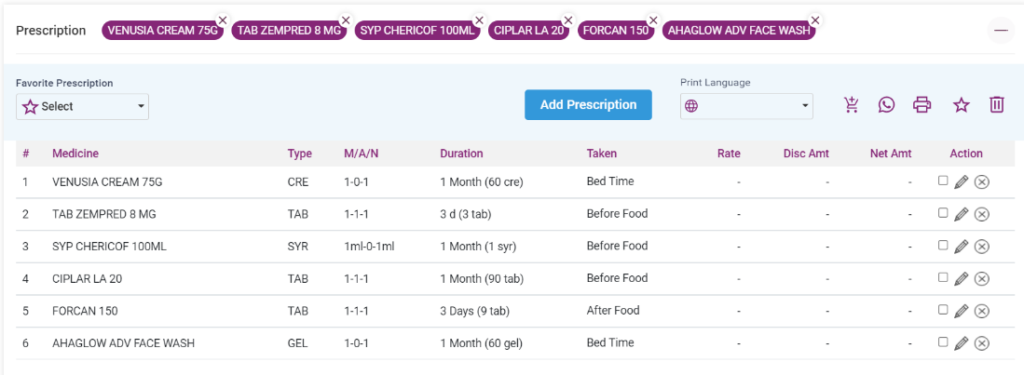
The added medicines will be displayed in the “Added Prescription” list. The added prescription list provides the following options:
- Send to pharmacy icon: On clicking this icon, the added medicines are sent to the “Sales Dashboard” under the Pharmacy module.
- Whatsapp icon: On clicking the whatsapp icon, the prescription can be sent to the patient’s whatsapp number as a whatsapp message.
- Print icon: On clicking, the added medicines will be printed.
- Translate icon: On clicking, the entered “notes” and “when to take” fields will be translated to the selected language from the drop-down list in the “Print language” field.
- Star icon: On clicking this icon, medicines will be added to the favorite medicine list.
- Delete icon: On clicking the delete icon, all the medicines in the list will be deleted.
- Edit icon: The edit icon can edit the medicines individually.
After this discount can be given for the overall amount by selecting the discount type and entering the amount accordingly, the final amount will be calculated and displayed in the “Total Net Amount” field.
EHR Case Sheet- Prescription (Added Medicine list)
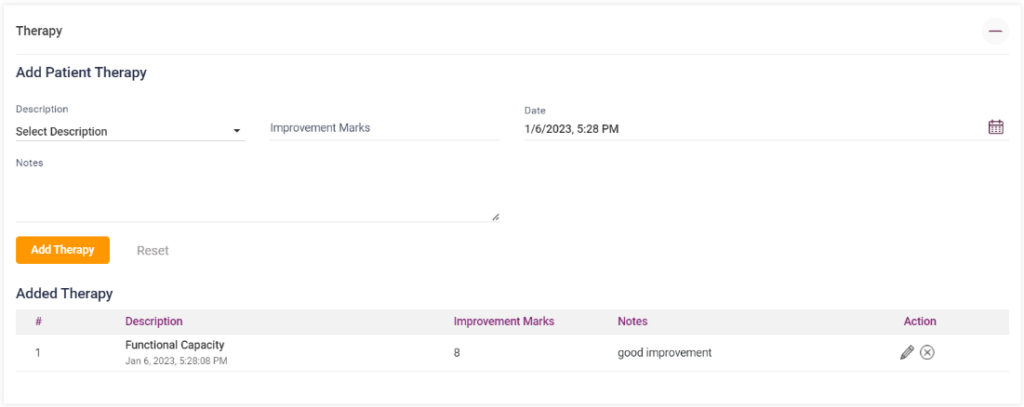
7. Therapy- The user can select the therapy from the drop down list, enter the improvement marks and add notes, if any. The ” Date ” field will automatically display the current date and time. Click the “Add Therapy” button to display the therapy added to the list below. Click the “Reset” button to edit or delete the entered details.
EHR Case Sheet- Therapy
8. Instructions- Select the instruction from the drop-down list and enter notes, if any. Click on the “Add” button to display the Instructions added. Click on the added instructions to edit or delete it.
Screenshot:
EHR Case Sheet- Instructions

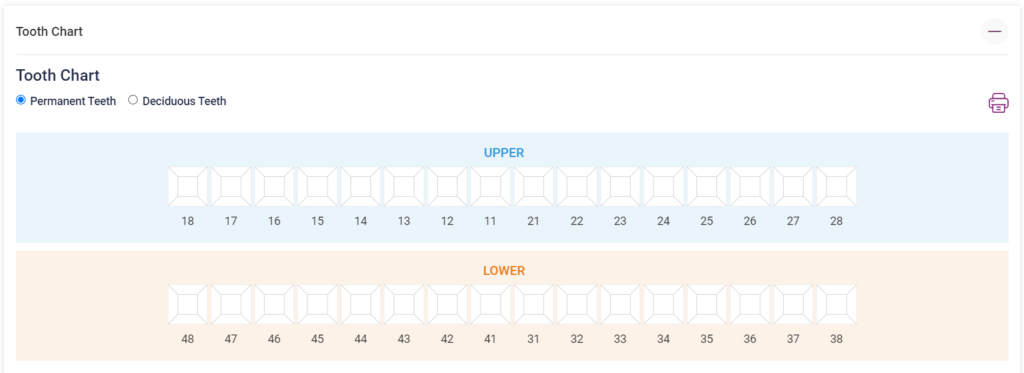
9. Tooth Chart- This section is generally present in a Dental EHR, but this can be added from the settings icon below the case sheet in any EHR.
- Tooth chart: The number of permanent and deciduous teeth will be displayed as an image. The user can click on each tooth, enter the details of the tooth position, and add color to the decayed part of the teeth according to the severity.
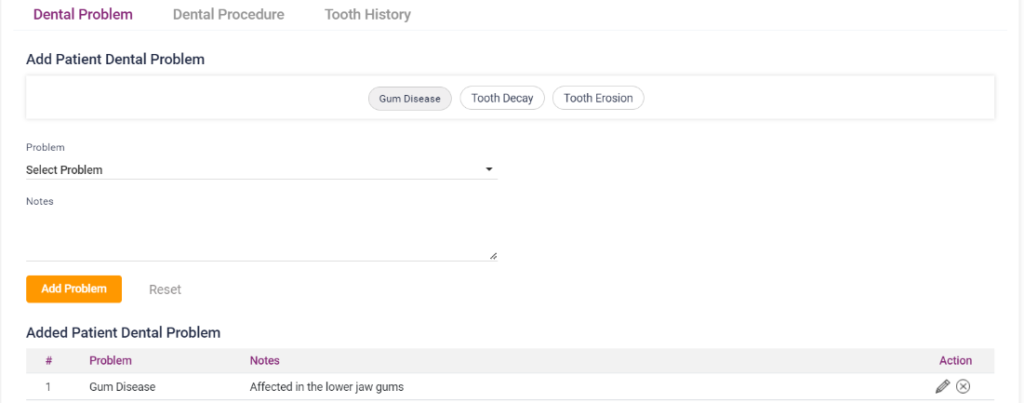
- Dental Problem: Select the dental problem from the drop-down list, and enter notes, if any. Select the “Add Problem” button to display the added dental pain in the list below. Click on the Reset button to delete the entered details. The user can edit or delete the added problems using the “Edit” and “Delete” icons.
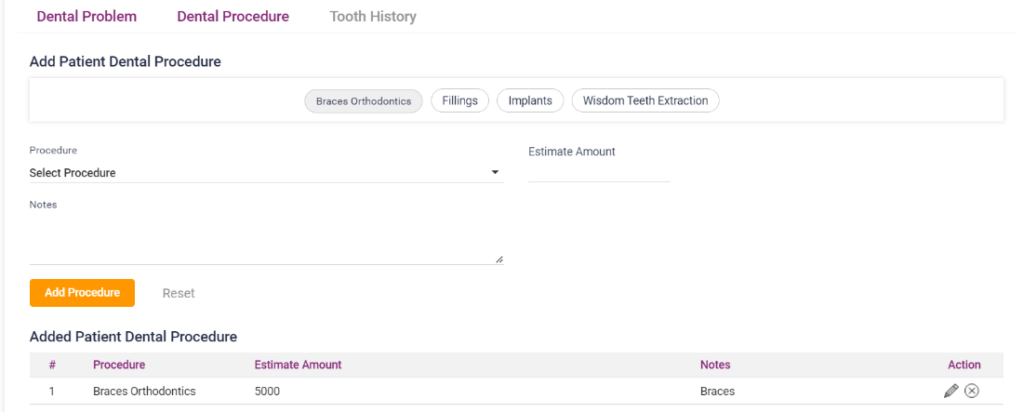
- Dental Procedure: Select the procedure from the drop-down list, and enter notes if any. The estimated amount will be displayed automatically. Select the “Add Procedure” button to display the added dental procedure in the list below. Click on the Reset button to delete the entered details. The user can edit or delete the added processes using the “Edit” and “Delete” icons.
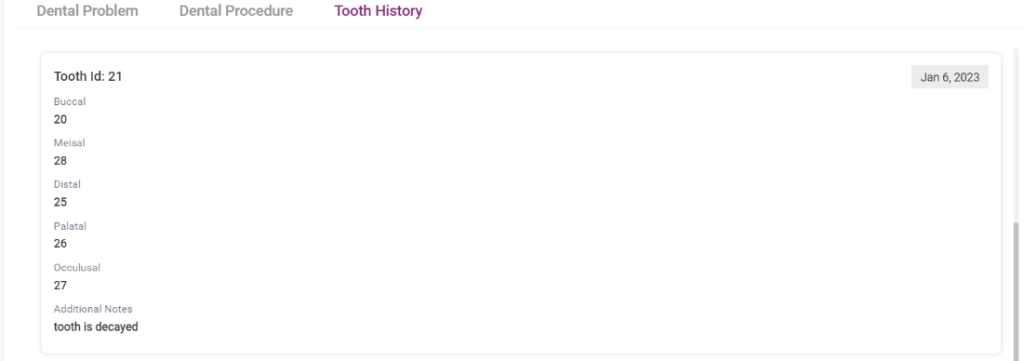
- Tooth History: This section displays the tooth details of the patient entered.
EHR- Case Sheet- Tooth Chart
EHR- Case Sheet-Tooth Chart- Dental Problem
EHR- Case Sheet-Tooth Chart- Dental Procedure
EHR- Case Sheet-Tooth Chart- Tooth History
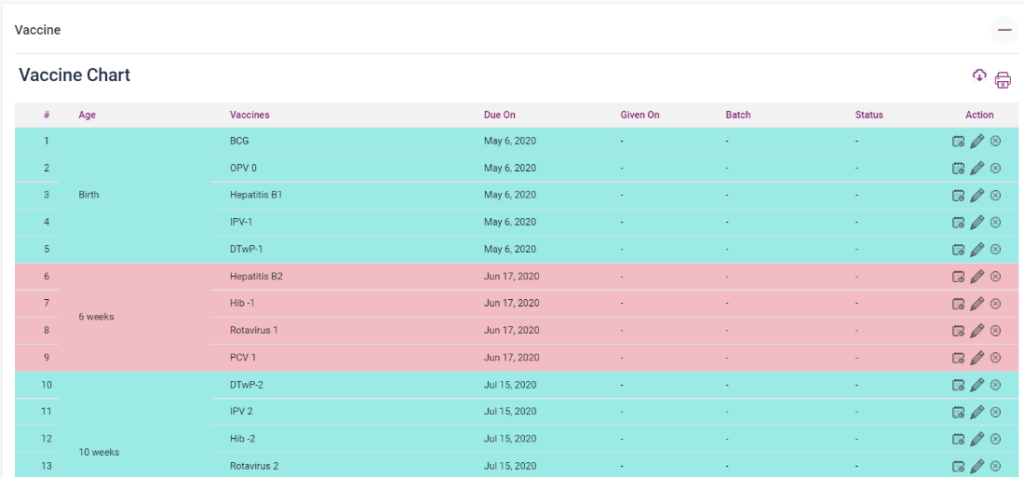
10. Vaccine Chart- This section is generally present in a Pediatric EHR, but this can be added from the settings icon below the case sheet in any EHR.
This can be loaded if the patient is a pediatrician. On opening the Vaccine chart tab, it asks to “Confirm .”Once the user clicks the “Confirm” button, the vaccine chart for a child from birth to age 12 will be loaded.
Screenshot:
EHR- Case Sheet- Vaccine Chart
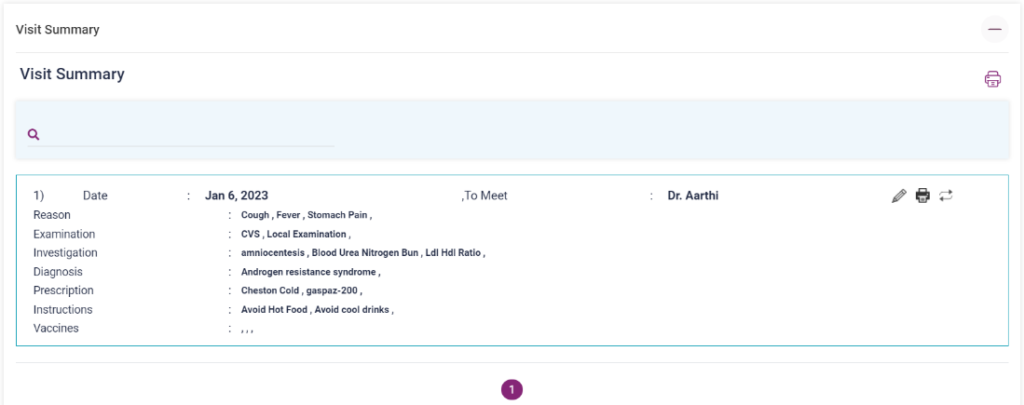
11. Visit Summary- On opening the visit summary tab, the visit history details of the patient will be loaded automatically.
EHR Case Sheet- Visit Summary
12. Treatment Plan- Select the patient’s treatment plan from the drop-down list, select the next visit date, and add notes, if any. Click the “Add” button on the right, and the treatment plan entered will be saved and displayed on top. Click on the added chief complaint to edit or delete it.
EHR Case Sheet- Treatment Plan

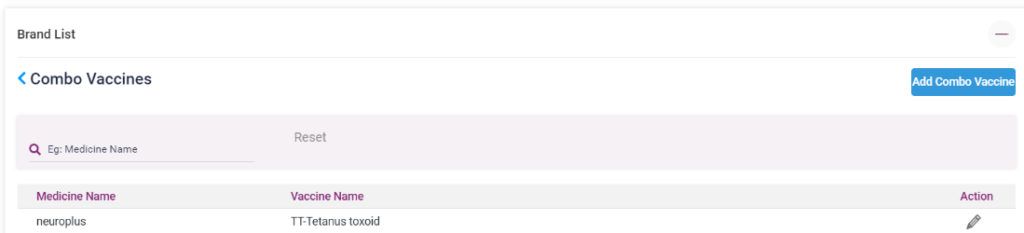
13. Brand List- The user can add the available Combo Vaccine from the medicine list. The added vaccines will be displayed in a list below. It can be edited using the edit option.
EHR Case Sheet- Brand list
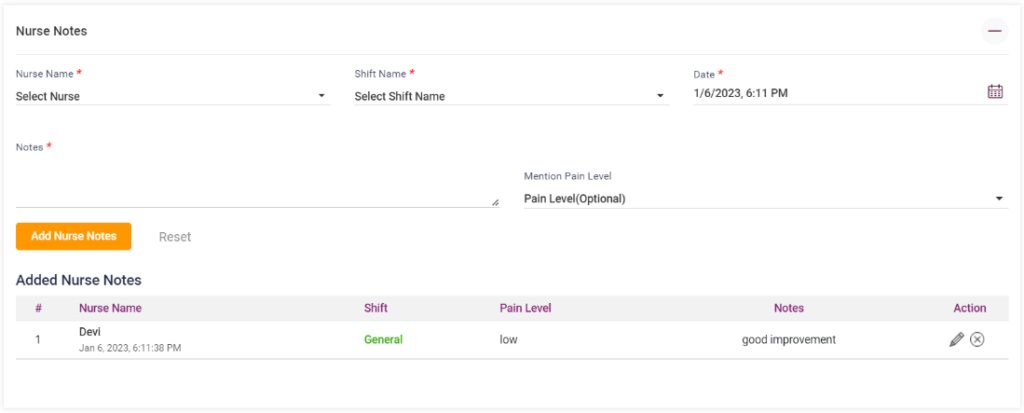
14. Nurse Notes- Select the “Nurse name,” “Shift Name,” and “Date,” enter notes, if any, and enter the “Pain level“click on the “Add Nurse Notes” button, and the added nurse note will be saved and displayed in the list below. Click on the “Reset” button to delete the entered details. The added notes can be edited or deleted individually using the icons present.
EHR Case Sheet- Nurse Notes
- Treatment Plan:
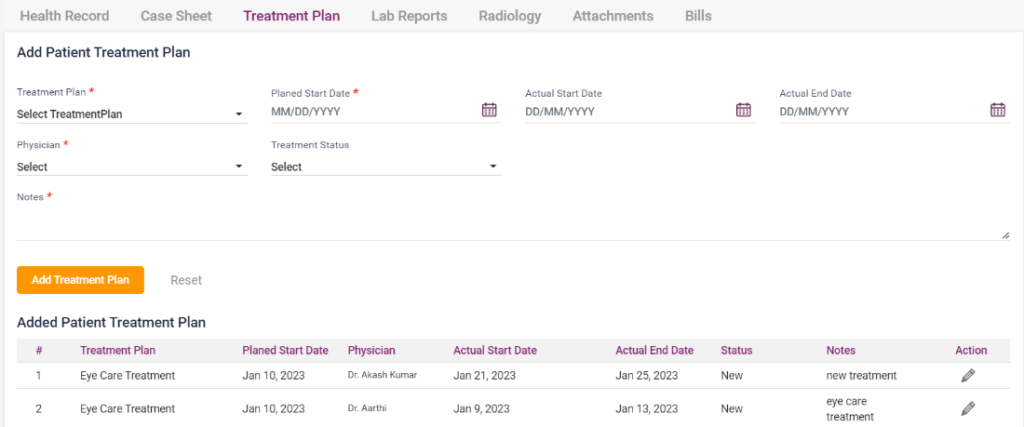
The user can add a treatment plan for the patient according to the Physician’s advice.
- Treatment Plan: Select a treatment plan from the drop-down list.
- Planned Start Date: Select a start date for the treatment plan.
- Actual Start Date: Select the exact start date of the treatment plan.
- Actual End Date: Select the actual end date of the treatment plan.
- Physician: Select the Physician who suggested the treatment plan.
- Treatment Status: Select the status of the treatment plan.
- Notes: Enter notes, if any.
- Add Treatment Plan: Select the “Add Treatment Plan” button to display the added treatment plan in the list below.
- Reset: On clicking the reset button entered details can be deleted.
- The added treatment plan can be edited individually using the edit icon in the list.
EHR- Treatment Plan
- Lab Reports:
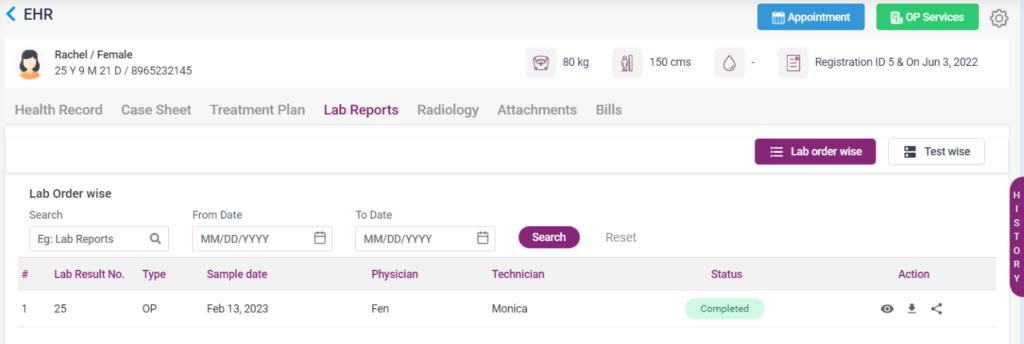
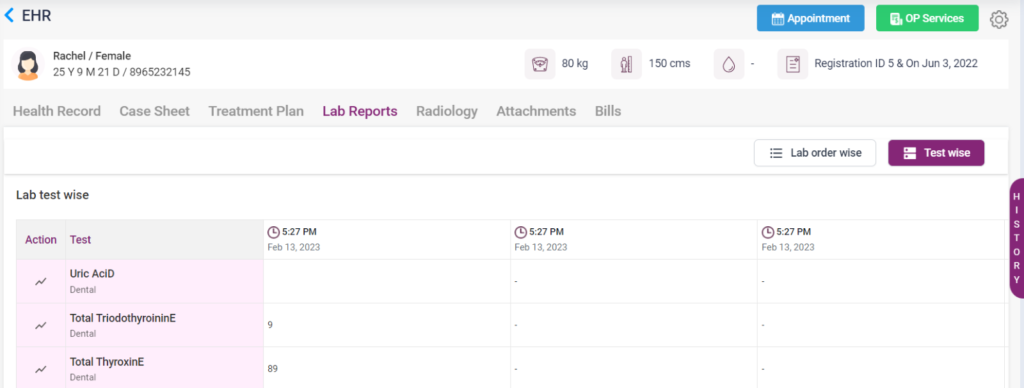
This section contains the patient’s lab reports, which were taken and completed. The user can View, Share and Download the patient’s lab reports.
EHR- Lab Reports
- Radiology:
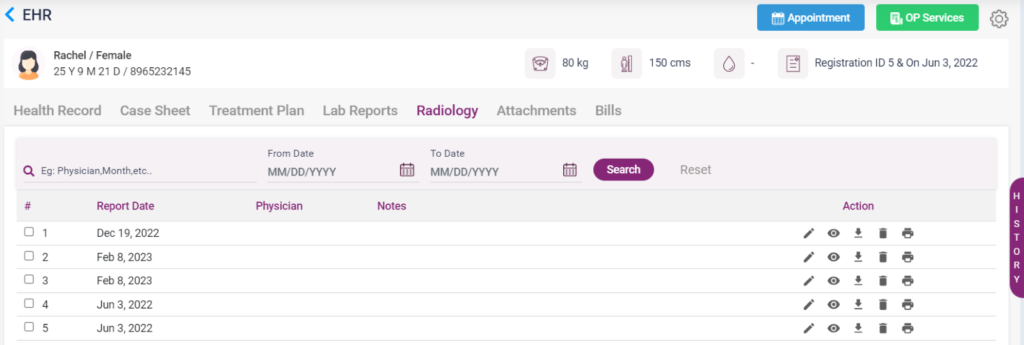
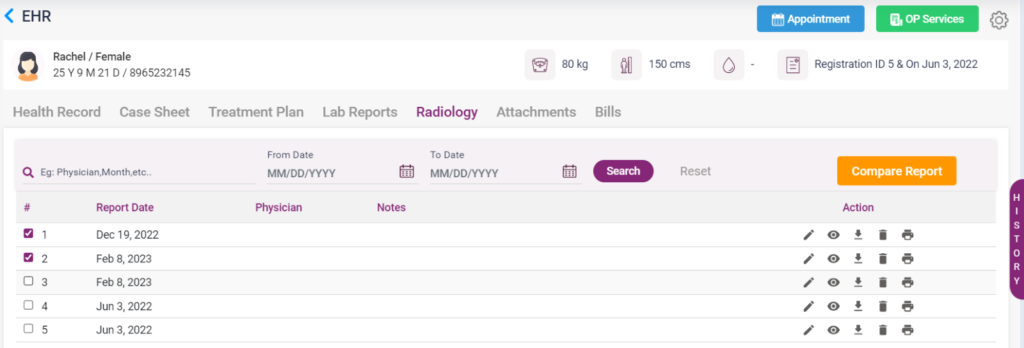
This section contains the radiology reports of the patient. The user can,
- Edit the Physician’s name and notes on the report
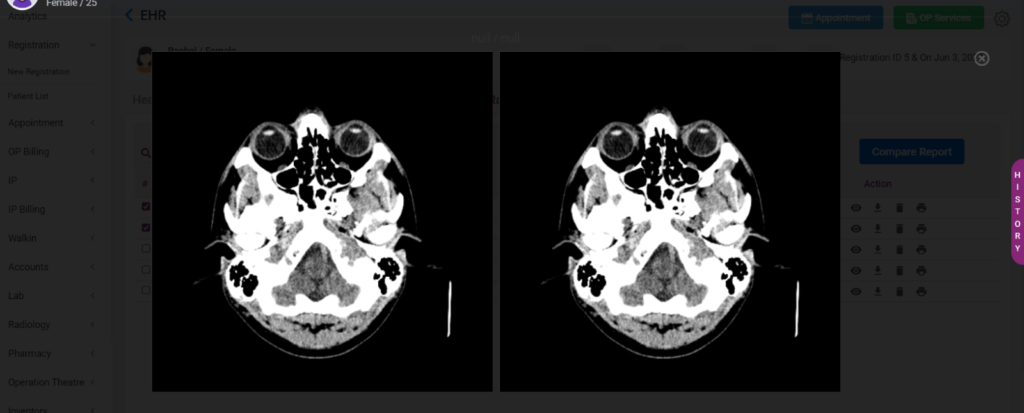
- Compare two reports at the same time
- Download, Print, Delete, and View the report
- You can search the reports according to the date and name
EHR- Radiology
- Attachments:
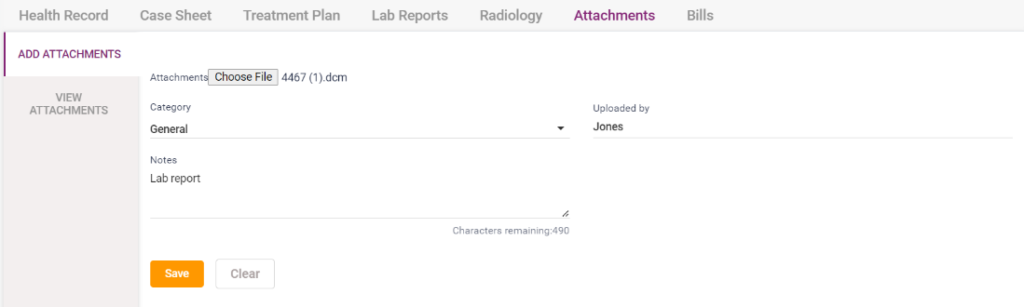
In this section, the user can attach any file which belongs to the patient. It may include lab, radiology, general consultation, prescription, or any file type.
Add attachments- The user must select the category, enter the name (who uploaded) and notes, if any, and click on the “Save” button after choosing the file from the local PC by using the “Choose File” button. The “Clear” button can be used to delete the entered details.
EHR- Attachments- Add an attachment
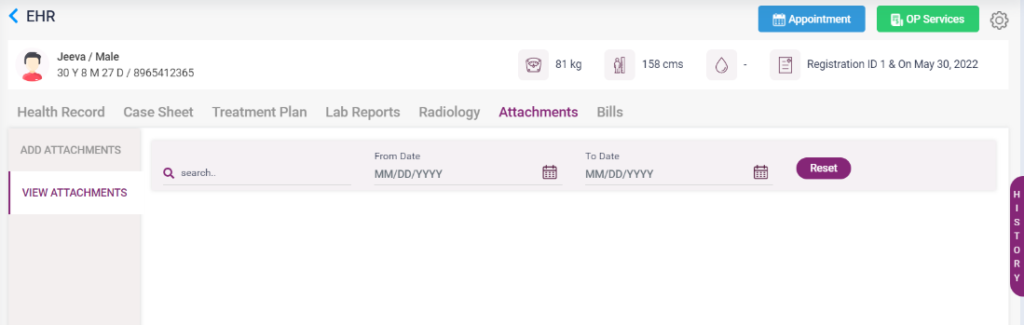
View attachments- The user can view the uploaded attachments in this section. Also, the files can be searched by date and name.
EHR- Attachment- View attachment
- Bills:
This section of the EHR contains all the bills paid by the patient. The bills can be searched by date, name, and status. After searching, the bills will be displayed as a list on the page. The user can edit, print and share the bills of the patient.
EHR- Bills
