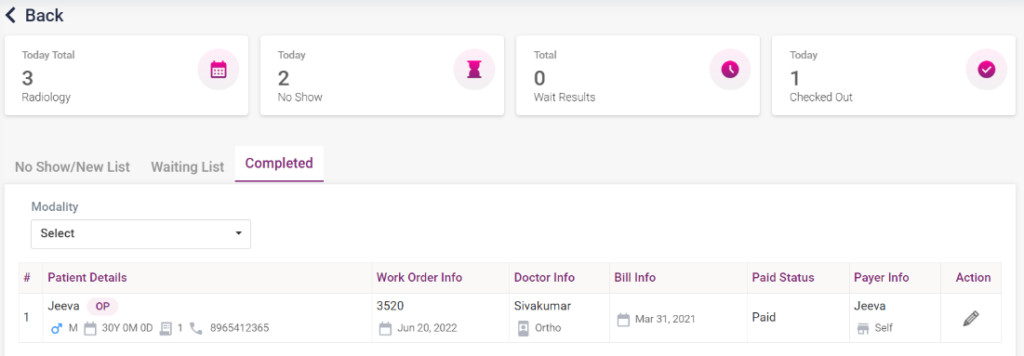
The Radiology Modality Overview section shows the list of Modalities and the count of the radiology order according to “New”, “No show”, “Waiting”, “Completed”, and the Total count.
In the top section, the list of modalities selected will be displayed. If we want to see only the list of work orders related to the particular modality, click on that modality. On clicking, it will direct you to the radiology order queue page. The radiology orders, the number of waiting-for-result radiology orders, the number of checked-out radiology orders and the total number of radiology orders for today will be shown on the dashboard at the top. The modality can be changed from the modality drop-down list. After changing, click on the edit icon of the patient; only the work orders of that modality will be shown in the work order list of the patient.
If the user wants to view all the work orders, they must click the “View All” button from the radiology dashboard. The radiology order queue consists of the following processes,
- New List/No show list
- Waiting List
- Completed list
- New List/ No show list:
- The new list in the radiology order queue contains the new radiology orders prescribed for the day. The radiology orders from IP, OP and EHR Case sheet- Investigation and OT daycare will be loaded here. The details of the radiology order shown are Bill ID, Name, and edit. The bill’s status, the patient type, whether OP or IP and the physician details will also be displayed.
- There are two types of the work orders, the work orders which are sent to an outside lab and the work orders, which are done inside the hospital labs.
- Initially, the radiology orders in the new list will be set as “New” in the status.
Screenshots:
10.2. Radiology Modality Overview
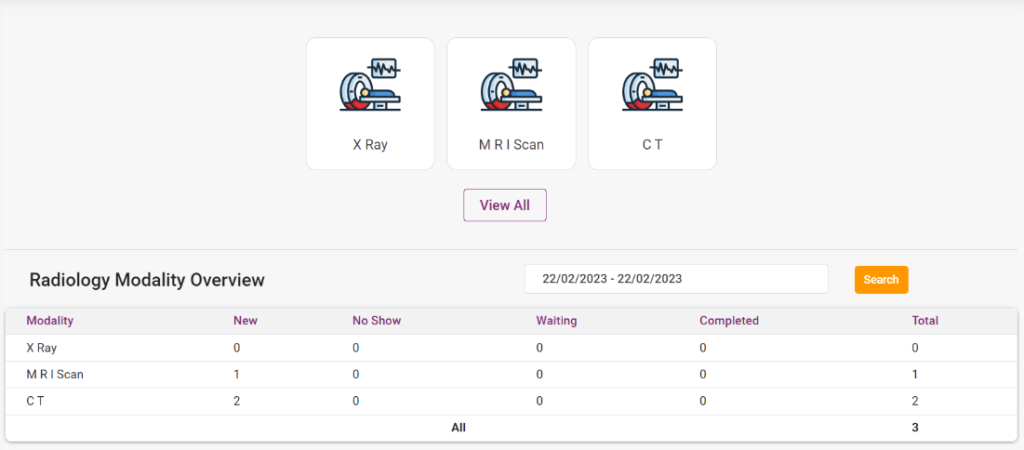
10.2. Radiology – New List
- Waiting List:
- If the orders must be sent to an outside lab, click on the edit option of the particular order in the new list, select the send check box, and click the “Update” button. Once updated, the work order status will be set to “Waiting” and moved to the waiting list.
- Once the result is received from the outside lab, click on the edit option of the work order in the waiting list, select the received check box, add the scan result in the attachment option, and click update. After that, the work order status will be set to “Complete” and moved to the Completed list.
- If the radiology work order is sent to the radiology department inside the hospital, click on the edit option, add the resulting scan in the attachments option, and click update. Once updated, the status will be set as “Completed” and moved to the completed list.
10.3. Radiology – Waiting List

- Completed List:
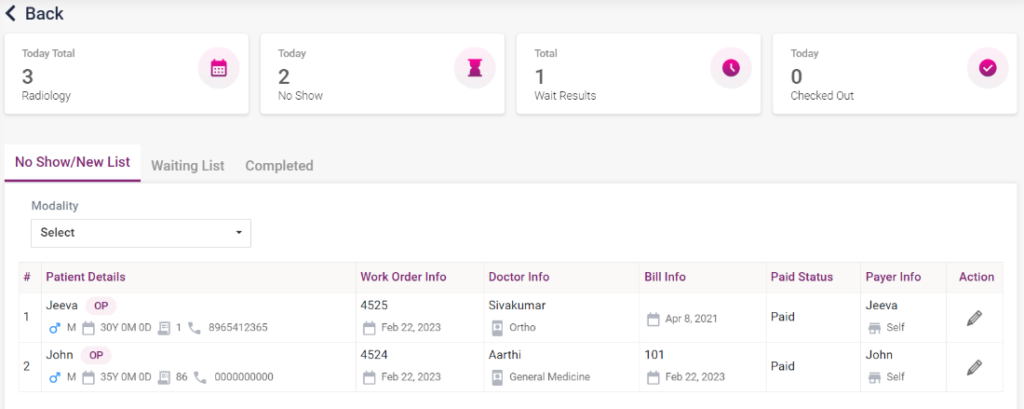
- The radiology work orders which are completed will be shown in this list.
- They can be edited, and new scan reports can be added in the attachments section and updated.
10.4. Radiology – Completed List