Inventory purchase is acquiring supplies through purchases from manufacturers, their agents like distributors, or private or public suppliers. Purchasing of Items starts with framing buying policies and ends with receiving, stocking, and payment. The Inventory purchase section includes,
i. Purchase- Inventory->Purchase->Purchase
ii. Purchase Return- Inventory-> Purchase->Purchase Return
iii. Purchase Order- Inventory-> Purchase->Purchase Order
i. Purchase: The necessary items needed for the hospital can be purchased in this section. The purchased list can be searched using the From date, To date or Period. The pending purchases will have an edit icon to approve the purchase, and the approved purchase will have a view icon to view the purchase. Click the “Add” button on the “Add Inventory Purchase” screen. Enter the following details using the Invoice available from the purchase.
- Supplier Name *: Select the Supplier name from the drop-down list.
- Invoice Number *: Enter the invoice number.
- Invoice Amount *: Enter the invoice amount.
- Invoice Date: Select the Invoice date from the calendar.
- Invoice due date *: Select the Invoice’s due date from the calendar.
- GRN Date *: Select the GRN Date from the calendar.
- Item Name: Select the medicine name from the Product list.
- Batch No: Enter the batch number of the item.
- Expiry Date: Select the expiry date of the item.
- Qty *: Enter the Quantity needed to purchase.
- Free Qty: Enter if there are any free quantity is received.
- MRP *: Enter the actual price of the item.
- Cost Price: Enter the cost price of the item at which it was purchased. When entering the cost price, the “Item Amount” and “Taxable Amount” will be automatically calculated and displayed.
- Sell Price: Enter the selling price of the item at which it has to be sold in the hospital.
- Discount %: Enter the percentage of discount on the purchased item. When entering the discount percentage, the discount amount, taxable and payable amounts will be automatically calculated and displayed.
- Warehouse Name: Select the warehouse from the list.
- Item Amount, Discount Amount, Taxable Amount, CGST, CGST Amount, SGST, SGST Amount, IGST, and IGST Amount will be displayed based on the medicine details in Medicine master.
- The fields mentioned above, Total GST and Payable Amount, will be calculated according to the discount amount and cost price.
- After entering all the mandatory fields, click the “Add” button to add the medicine to the list. The added medicines will be displayed in the list below. Click on the Reset button to delete the entered details of the medicine. Select the Cancel button to cancel the entry and go to the previous page.
- Click on the “Save” button to save the purchase. This will be listed in the Inventory Purchase page screen. The status will be displayed as “Pending” if the Invoice amount and net amount are different. In that case, click the edit icon enter the correct amount and click the update button.
- Suppose the net Amount and Invoice amount match, the purchase approval pop-up box appears on clicking save. The user must click the “Approve” button to approve the purchase and list it in the Inventory Purchase screen. The status will be displayed as “Approved”.
- The purchased items will be updated in the “Stock List”.
13.A.1: Inventory Add Purchase
13.A.2: Inventory Purchase List
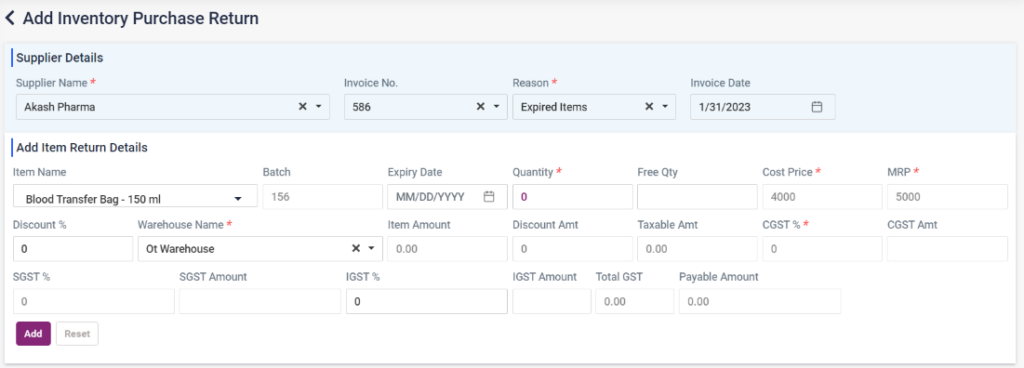
ii. Purchase Return: If the products purchased are damaged, expired, ordered by mistake or for any other reasons, then those particular products can be returned to the distributor. The purchased list can be searched using the from date, To date or Period, supplier name and reason. Using the following steps,
- Inventory->Purchase-> Purchase Return-> Add Purchase Return button
- Supplier Name *: The user must select the supplier’s name from the Invoice, which must be returned.
- Invoice No: Select the invoice number to be returned.
- Reason *: Select the reason for return from the field.
- Invoice Date: The date of the Invoice will be automatically loaded.
- Product Name: Select the name of the product from the list. Once the product is selected, the other fields will be automatically loaded as given in the purchase. The user must enter only the Quantity, which must be returned in the Quantity and Free Unit fields accordingly.
- Add: Click the add button to add items to the list below. Click on the Reset button to clear the entered details. The added items can be edited or deleted.
- Cancel: Click the Cancel button to cancel the return and return to the previous page.
- Other details: Discount can be given to the returned products in this section.
- Return Remarks *: Remarks for return must be entered.
- Save: Click on the save button to save the purchase return details, and this will be listed on the “Purchase Return” page with the return status as “Pending.”
- After completing the return process, the user must click on the edit icon of the purchase return entry and click on the “Update” button for the “Purchase Return Approval” pop-up box.
- Click on the “Approve” button to approve the purchase return. After this, the entry will be listed on the “Purchase Return” page with the return status as “Approved”.
13.A.2 – Inventory – Add Purchase Return
13.A.2 – Inventory – Purchase Return List

iii. Purchase Order: A purchase order is a document executed by a purchaser and forwarded to a supplier that is considered a legal offer to buy products or services. It demonstrates their commitment to pay for specific products and services from a seller and establishes terms for payment. A PO communicates the buyer’s needs to the seller and establishes their expectations. In Ezovion HMS, it has two steps,
I) PO Inventory Creation
II) Approved Inventory PO
I) PO Inventory Creation:
- The created purchase orders can be searched using the from date, To date or Period.
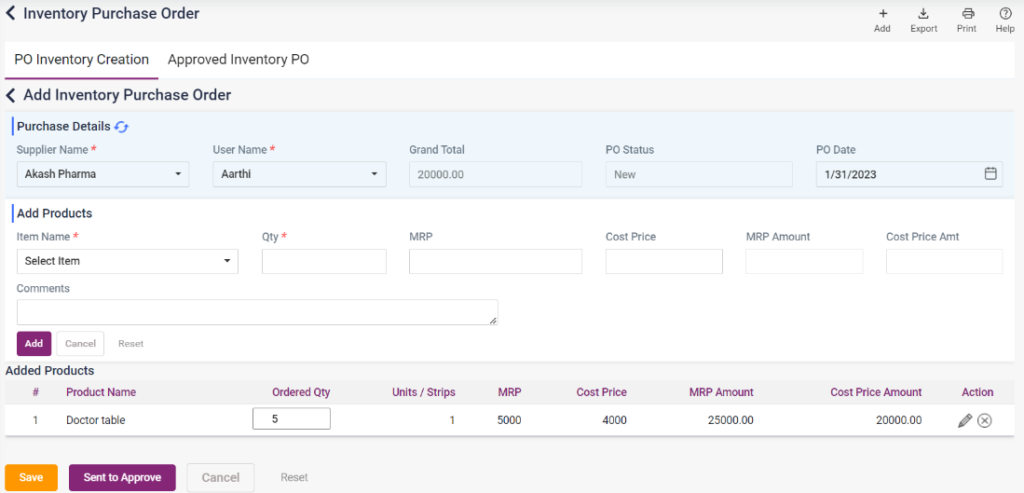
- To create a purchase order, click the “Add” button, which directs you to the “Add Inventory Purchase Order” screen. On that page, enter the following details.
- Supplier Name *: Select the supplier’s name from the list.
- User Name *: Select the user’s name for creating the purchase order.
- Item Name *: Select the item to add to the Purchase Order.
- Qty *: Enter the Quantity of the item needed.
- MRP *: Enter the MRP of the item. On entering the MRP, the MRP amount will be calculated and displayed.
- Cost Price *: Enter the cost price at which the medicine has to be purchased. The cost price will be calculated and displayed upon entering the cost price.
- Comments: Enter comments, if any.
- Add: Click on Add button to add it to the list below.
- Cancel: Click the Cancel button to cancel the purchase order and return to the previous page.
- Reset: Click on the reset button to clear the details entered.
- Edit icon: Click on the edit icon in the added list to edit the details of the added item.
- Delete icon: Delete icon is used to delete the added products.
- Save button: Click on the save button to save the purchase order, and it will be displayed on the Purchase Order page as a list, and the PO Status will be “New”.
- Send to Approve: Click the “Send to Approve” button and select “confirm” to save the purchase order and send it for approval. The PO Status of the purchase order will be set as “Approved”.
- Cancel and Reset button: Click the cancel button to cancel the purchase and return to the previous page. Click on the Reset button to clear the details entered.
13.A.3 – Inventory – Add Purchase Order
13.A.4 – Inventory – Purchase Order List

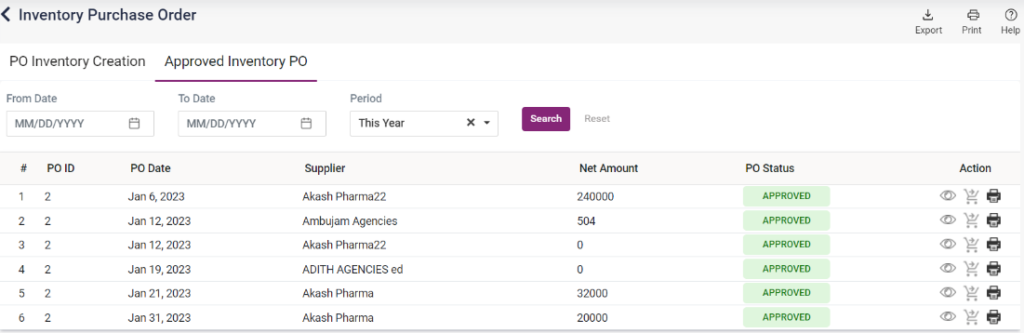
II) PO Approval:
- The approved Inventory PO will be displayed on this page.
- After the PO is approved, the “Go To Purchase” icon will be enabled.
- Clicking the “Go To Purchase” icon directs to the Add Inventory Purchase page.
- Method: There are two options available on this page. When selecting “Load Supplier Specific PO items, ” the items added to the Purchase Order will only be loaded in the “Product Name” drop-down list.
- On selecting the “Load All Items” option, all the items available in the inventory item master will be loaded.
- After this selection, the process of adding inventory purchase must be followed.
13.A.5 – Inventory – Purchase Order Approved List