- Ward Wise Price settings
- To start the ward wise settings first we need to set up the masters.
- First we have to select “Yes” in the Masters->Master set up->Settings->Hospital Settings->Ward Wise Price.
- If this option is selected “No”, then the service loaded will be charged the same price which is given in the service master.
Ward wise settings

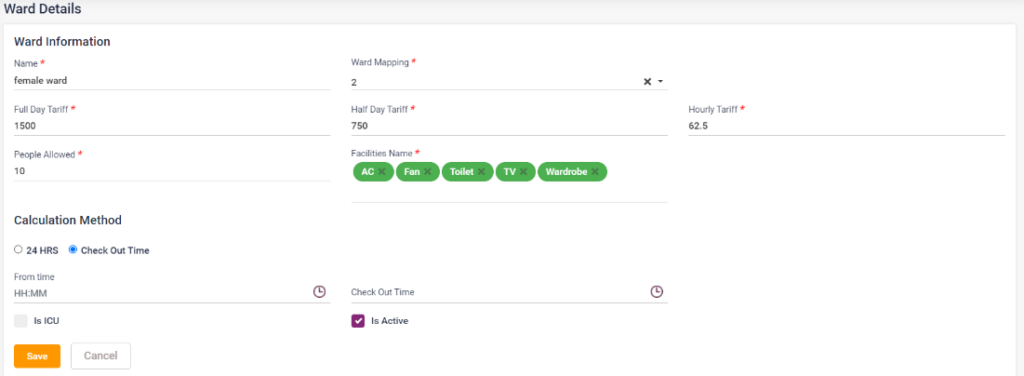
- Ward Wise Mapping
- Go to Masters->Master set up->IP->Ward-> for each ward select the ward mapping drop down box and select a number for each ward.
- Only if the ward is mapped, this ward will be displayed in the Price settings rows.
- We can set up to 20 wards in the rows.
Ward wise mapping
- Price Settings
- In Masters->Master set up->Payer-> in each of the payer click on edit and tick the “Variable Price”. Only if this is checked this particular payer will be visible in the service->Price settings->column.
- Select the service name and set up the price for that service in all the columns and rows.
Price Settings
- IP Patient – Payer
- This setting is for each patient in the admission list of Ezovion HMS.
- In the IP->Admission List->Action->View/Edit->Payer page select the following options to load service charge.
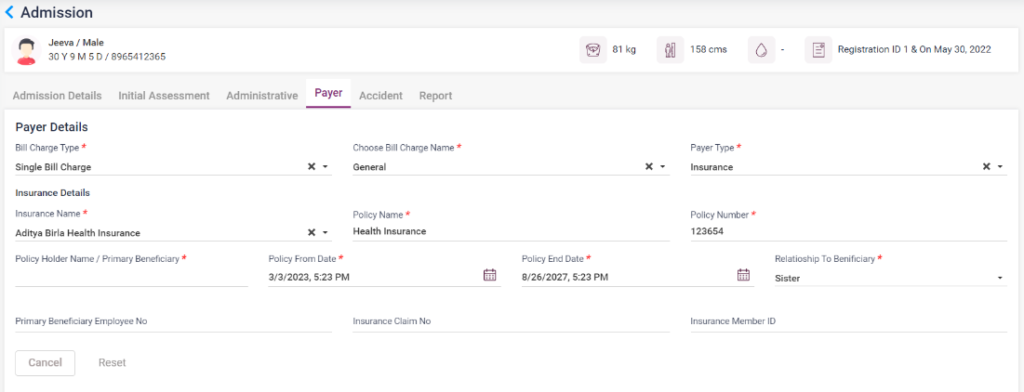
- Regular: If you select the bill charge type “Regular”, then the normal flow of the services will be followed. The price given in the “Common Price” for the wards will be charged. If price is not given then the normal service charges will be displayed.
Payer- Regular
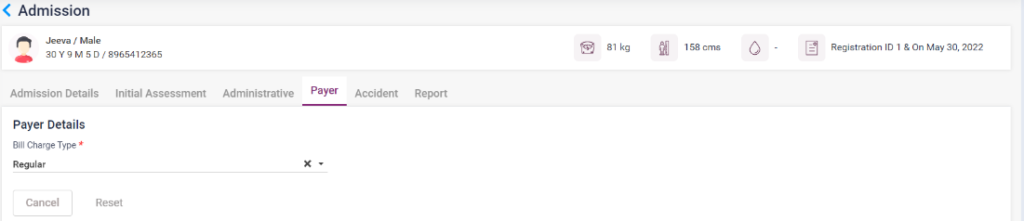
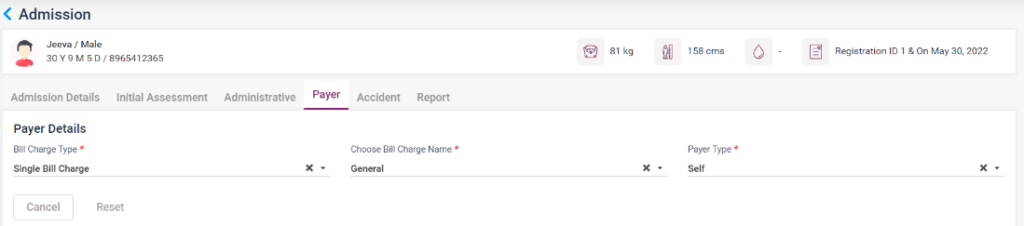
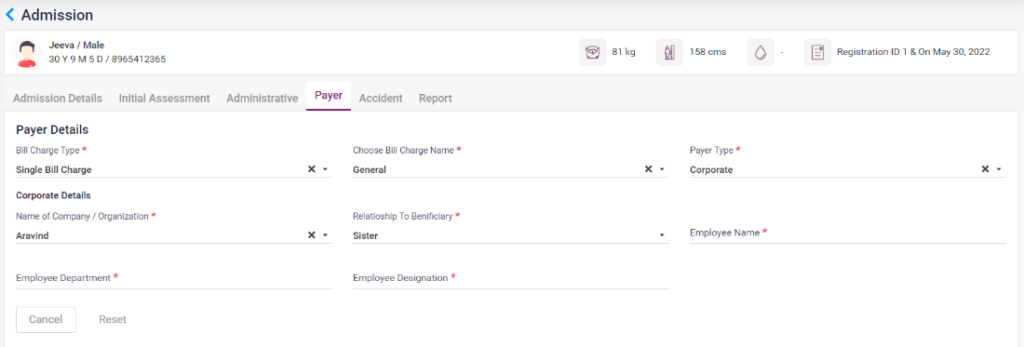
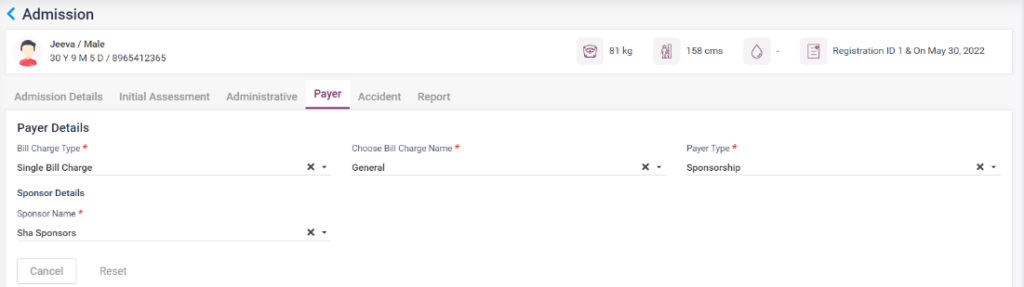
- Single Bill Charge: If you select the bill charge type “Single Bill Charge”, select the bill charge name and the payer type,
- If the payer type is selected “Self”, then the flow of regular charge will be considered but the charge given for the “bill charge name” will be considered irrespective of the ward they are in.
- If the payer type is selected “Insurance”, select the insurance and enter all the insurance details given. The ward price will be given for the selected bill charge name.
- If the payer type is selected “Corporate”, enter the corporate details. The ward price will be given for the selected bill charge name.
- If the payer type is selected “Sponsorship”, select the sponsor details and click on the save button. The ward price will be given for the selected bill charge name.
Payer- Single Bill Charge-self
Payer- Single Bill Charge-Insurance
Payer- Single Bill Charge-Corporate
Payer- Single Bill Charge-Sponsorship
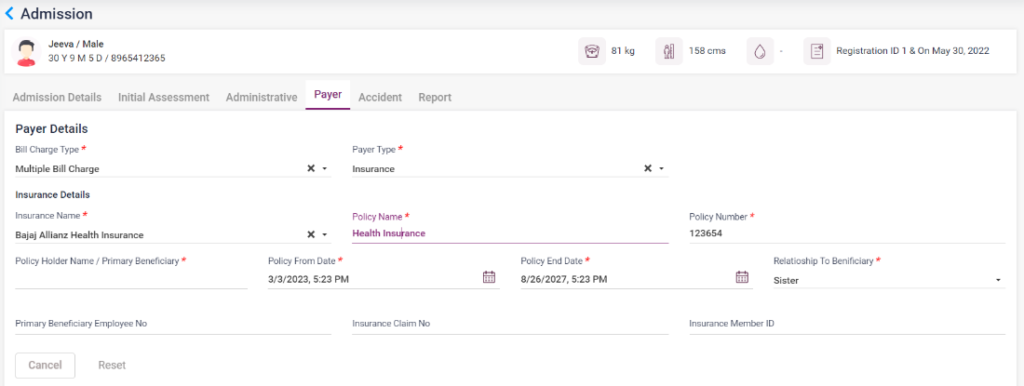
- Multiple Bill Charge: If you select the bill charge type “Multiple Bill Charge”, select the payer type,
- If the payer type is selected “Self”, then the flow of regular charge will be considered. The price according to the ward with common price will be considered.
- If the payer type is selected “Insurance”, select the insurance and enter all the insurance details given. The ward price will be given for the selected insurance and the ward they are in.
- If the payer type is selected “Corporate”, enter the corporate details. The ward price will be given for the selected Corporate and the ward they are in.
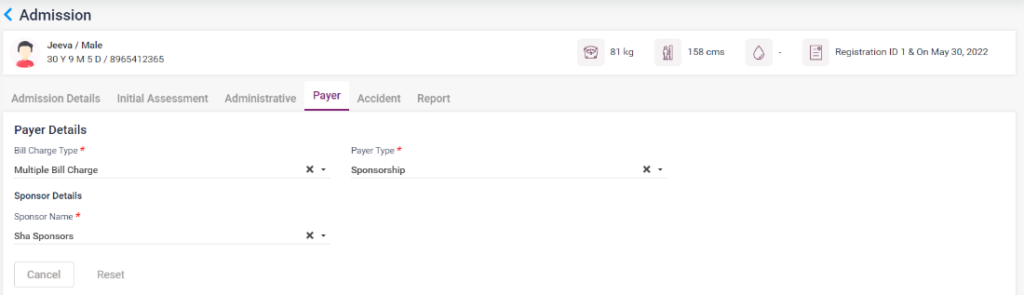
- If the payer type is selected “Sponsorship”, select the sponsor details and click on the save button. The ward price will be given for the selected sponsorship and the ward they are in.
Payer-Multiple Bill Charge-self
Payer- Multiple Bill Charge-Insurance
Payer- Single Bill Charge-Corporate
Payer- Single Bill Charge-Sponsorship
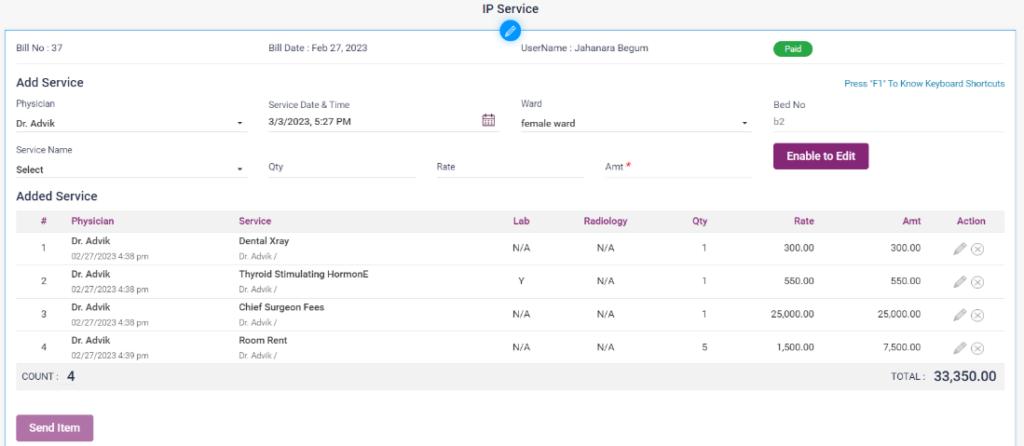
- IP Billing
- The amount of the services added for the patient, will be loaded according to the above given settings.
- If ward wise pricing is activated prices will be given according to the payer wise and ward wise charges.
- If ward wise settings are not activated then the charges given on the service master will be loaded.
IP Services Page