The accounts section consists of the revenue of the pharmacy department through sales and purchases. It consists of the following sections,
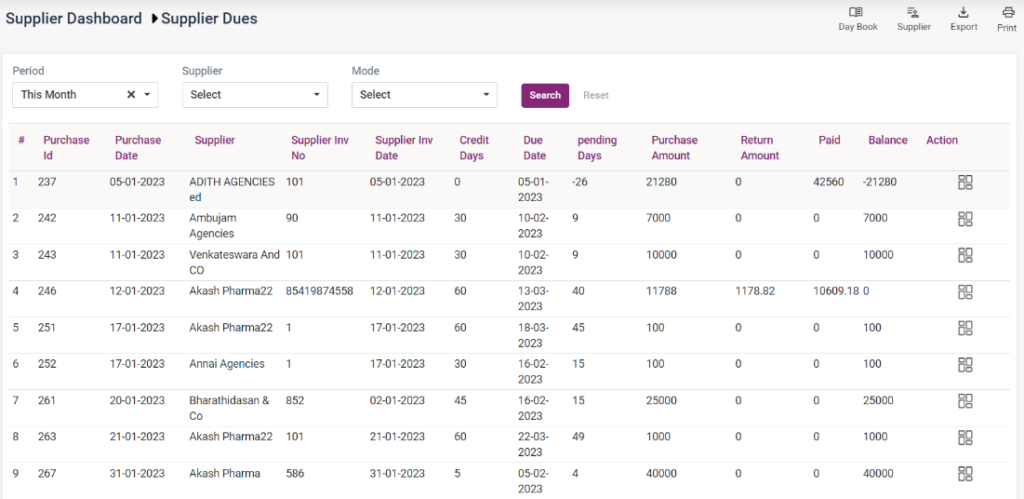
- Supplier Dues
- Supplier Payment List
- Credit Note
- Debit Note
- Supplier Dues:
- The Supplier dues section consists of the pending payment list of the hospital’s purchases.
- The details displayed are the supplier details, payment details and purchase details.
- Click on the “Dashboard” icon under Action, which directs you to the “Supplier Dashboard” page.
- All the purchase details from this supplier will be displayed.
- The user can change the supplier name from the drop-down list.
- On the right corner is a drop-down list with three options, daybook, supplier and supplier dashboard.
- Upon clicking the supplier dues page, it redirects to the supplier dues page.
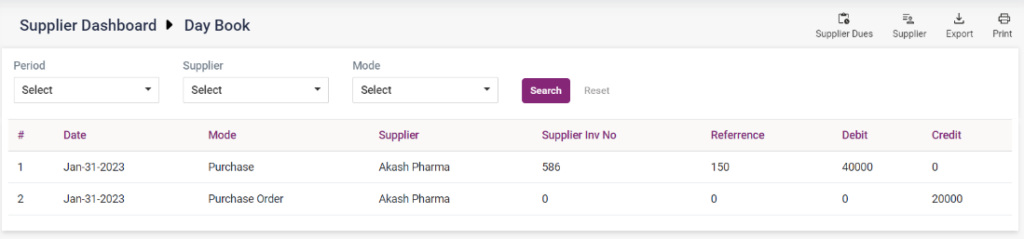
- Upon selecting daybook, it directs to the Daybook page. This page displays the debit and credit amounts of the current data. Others can be searched from the search criteria.
- Upon selecting the supplier option, it directs to the supplier master.
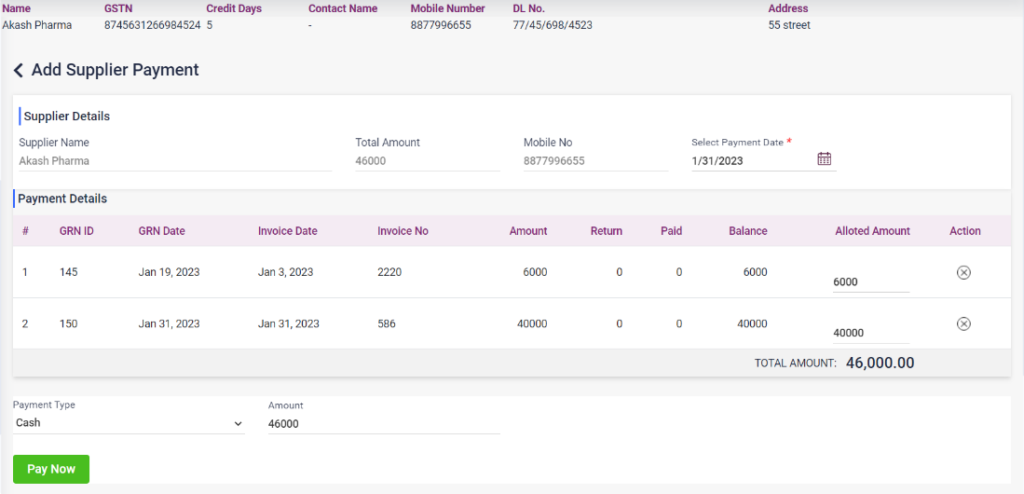
- Click on the last edit icon in the action options of the supplier for whom you want to pay, and it will load the supplier payment page.
- All the purchases done from this supplier will be displayed. The user can pay all the bills or any number of bills. If the user does not want to pay any of the bills, that particular bill can be deleted.
- The user has to enter the mode of payment, and the amount which has to be paid will be displayed.
- After selecting the Payment type and entering the amount, click the “Pay Now” button to complete the payment.
- After payment, the bill amount will be shown in the paid column on the “Supplier dues” page and moved to the “Supplier Payment List”.
13.A.24 – Inventory – Accounting –Supplier Dues page
13.A.25 – Inventory – Accounting – Daybook
13.A.26 – Inventory – Accounting –Supplier dues payment page
- Supplier Payment list
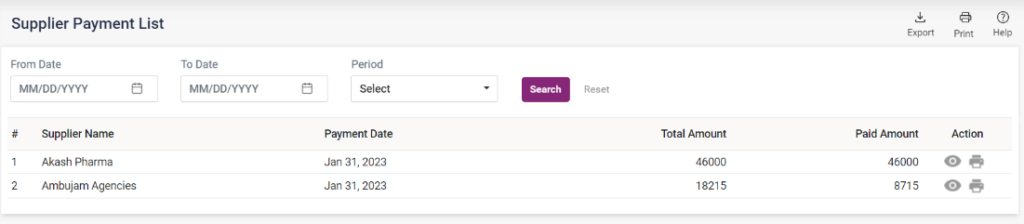
- The supplier payment list page consists of all the payments done for the day.
- The older payments can be searched using the “From Date”, “To Date” and “Period”.
- Each payment can be viewed using the “View” icon under Action and printed using the print icon.
- The details displayed are the supplier’s name, payment date, total amount and paid amount.
13.A.27 – Inventory – Accounting –Supplier Payment List
- Credit Note
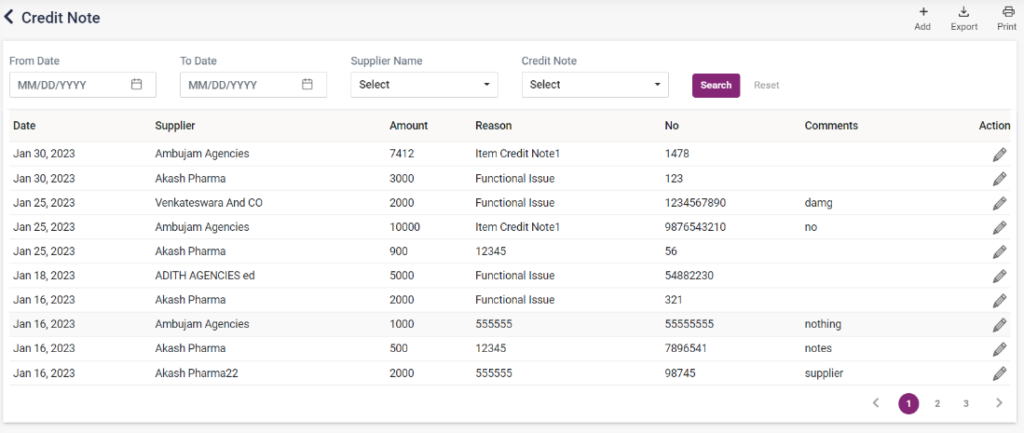
- A credit note is a document issued by a seller to a buyer to notify them that credit is being applied to their account.
- The added credit notes can be searched using the from date, to date supplier notes and credit note reason.
- A new credit note can be added by clicking the “Add” icon, which directs to the “Add Credit Note” page.
- Select the supplier’s name; email and address will be displayed automatically on selecting the contact no.
- Credit Note Reason: Select the credit note reason.
- Supplier Notes: Enter supplier notes, if any.
- Amount: Enter the Amount of credit.
- Credit Note Date: Select the credit note date.
- Supplier Credit Note no: Enter the supplier credit note number.
- Save: Click on Save to add the credit note to the list. The credit note can be edited using the edit icon from the Credit Note page.
- Cancel and Reset: Click on cancel to cancel the entry and reset to clear the entered details.
13.A.28 – Inventory – Accounting –Add Credit Note

13.A.29 – Inventory – Accounting – Credit Note List
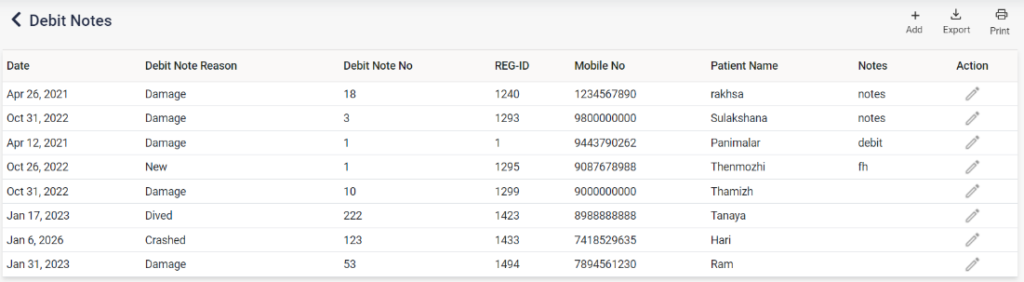
- Debit Note
- A debit note, or a debit memo, is a document issued by a seller to a buyer to notify them of current debt obligations.
- A new debit note can be added by clicking the “Add” icon, which directs to the “Add Debit Note” page.
- Select the patient’s name, on selecting the patient, type, contact no, email, age, gender, and address will be displayed automatically.
- Debit Note Reason: Select the debit note reason.
- Notes: Enter notes, if any.
- Amount: Enter the Amount of debt.
- Debit Note Date: Select the debit note date.
- Debit Note no: Enter the debit note number.
- Save: Click on Save to add the debit note to the list. The debit note can be edited using the edit icon from the Debit Note page.
- Cancel and Reset: Click on cancel to cancel the entry and reset to clear the entered details.
13.A.30 – Inventory – Accounting – Add Debit Note
13.A.31 – Inventory – Accounting – Debit Note List