
The accounts section consists of the revenue of the pharmacy department through sales and purchases. It consists of the following sections,
- Credit bill
- Receipt list
- Supplier Dues
- Supplier Payment List
- Credit Bill:
- This page consists of the bills marked as “Full Credit Bill” for the patient’s payer.
- The credit bills sent from OP and pharmacy sales are shown in this list. These bills can be edited and paid from here.
- On clicking the edit icon, it leads to the “Add Payment” page.
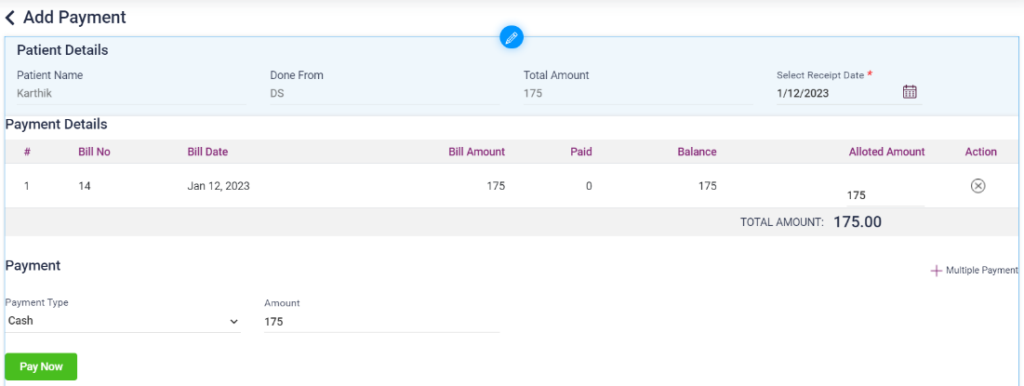
- In the add payment page, the details of the credit bill will be automatically loaded. The user has to enter the mode of payment and the Amount paid.
- If there are many bills, few of the bills can be paid, or all the bills can be paid at once as per the payer’s requirement.
- After selecting the Payment type and entering the Amount click on the “Pay Now” button to complete the payment.
- After payment the bill gets removed from the “Credit bill” section and moves to the receipt list section
11.34. Pharmacy- Accounts- Credit bill page

11.35. Pharmacy- Accounts- Credit bill payment page
- Receipt List:
- The credit bills which are paid will be displayed in the “Receipt List” page.
- The user can view the paid bills by clicking a particular bill’s “View” icon.
- The bills can be searched using “From Date”, “To date” and “Period”.
Screenshot:
11.36. Pharmacy- Accounts- Receipt List

- Supplier dues:
- The Supplier dues section consists of the pending payment list of the Hospital’s purchases.
- The details contain “Supplier Name”, “Purchase Amount”, “Purchase return Amount”, “Paid Amont” and “Balance”.
- Click on “Edit” option under Action, it directs to the “Add Supplier Payment” page.
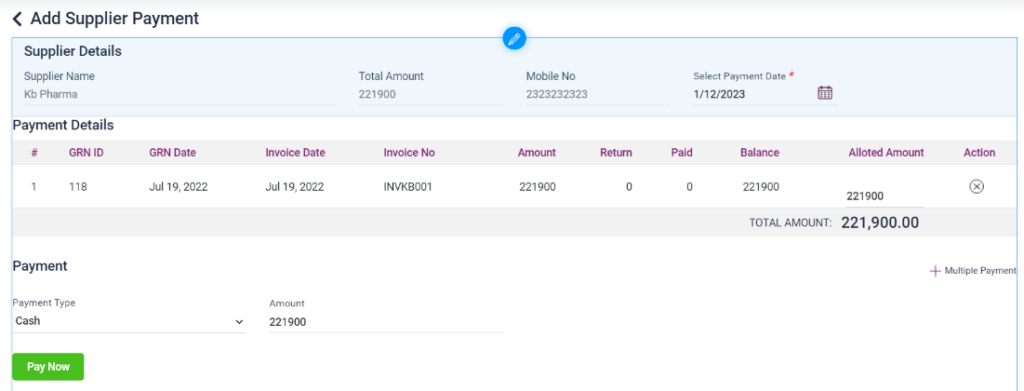
- All the purchases done from this supplier will be displayed. The user can pay all the bill or any number of bills. If the user does not want to pay any one of the bills, then that particular bill can be deleted.
- The user has to enter the mode of payment and the Amount paid.
- After selecting the Payment type and entering the Amount, click the “Pay Now” button to complete the payment.
- After payment the bill will be removed from the “Supplier dues” page and moved to the “Supplier Payment List”.
Screenshot:
11.37. Pharmacy- Accounts- Supplier Dues page

11.38. Pharmacy- Accounts- Supplier Payment page
- Supplier Payment list
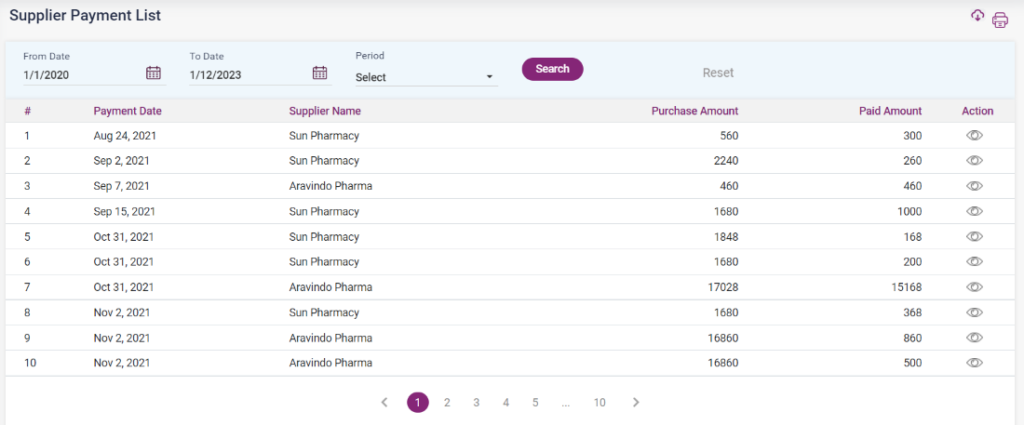
- The supplier payment list page consists of all the payments done for the day.
- The older payments can be searched using the “From Date”, “To Date” and “Period”.
- Each of the payments done can be viewed using the “View” icon under Action.
11.39. Pharmacy- Supplier Payment list page
11.40. Pharmacy- Supplier Payment View page
