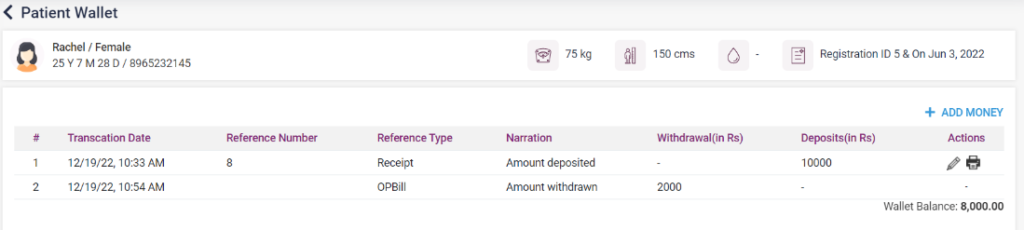
The user can use this screen to add money to the patient’s wallet. On clicking the “+ Add Money” button on the right side, a pop-up box appears. In that pop-up box, select the type of payment, which includes “cash,” “card,” “cheque,” “online banking,” and “net banking” in the Payment type field.
- Cash- Upon clicking cash, the amount field appears. Fill in the amount and click on “Save” to pay the amount or “Cancel” to cancel the payment.
- Card- After selecting a card, select the card type from the “Card type” field. Enter the “Transaction number” and “Amount” and then click on “Save” to pay the amount or “Cancel” to cancel the payment.
- Cheque/DD- When this option is selected, enter the “Transaction Number” and “Amount” and then click on “Save” to pay the amount or “Cancel” to cancel the payment.
- Online- Upon selecting online, select the UPI name from the “Select UPI Payment” field. Enter the “Transaction number” and “Amount” and then click on “Save” to pay the amount or “Cancel” to cancel the payment.
- Net Banking- After selecting this option, select the Bank name from the “Select Bank” field. Enter the “Transaction number” and “Amount” and then click on “Save” to pay the amount or “Cancel” to cancel the payment.
After the payment is made, the details of the amount will be loaded as a list in the “Patient Wallet” screen. The user can make multiple payments for the patient. The payment can be edited and taken print by clicking the icons available. The available wallet balance will be shown below.
3.2.40. Patient Wallet