
This section consists of the reports of the modules in Ezovion HMS. The reports provided in Ezovion HMS are,
- Bill Reports
- Bill Collection Day Wise: The reports provide the bills collected with the date.
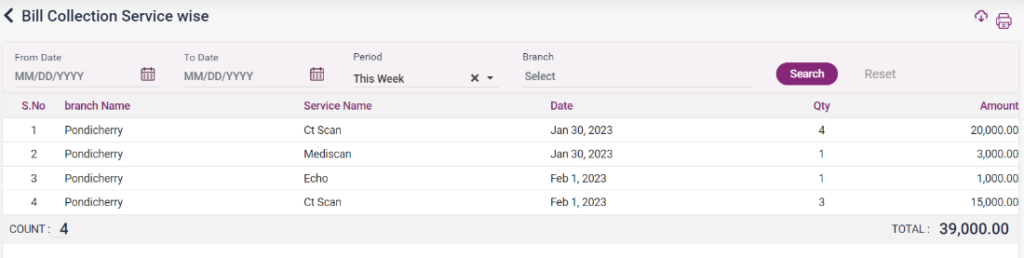
- Bill Collection Service Wise: This report displays the list of services provided along with the service name and date the service was provided.
- Bill Collection Service Category Wise: This report displays the services the service category provides.
14.1. Bill Collection Day-wise report

14.2. Bill Collection service-wise report
14.3. Bill Collection service category-wise report
- Referral Reports
- Referral List: The reports show the patient details, referral details, referral name, and department.
- Medical History Report: This page shows the patient’s medical history in the system.
14.4. Referral Report

14.4. Medical History Report

- IP Report
- Ward List: The list of wards and the tariff are displayed.
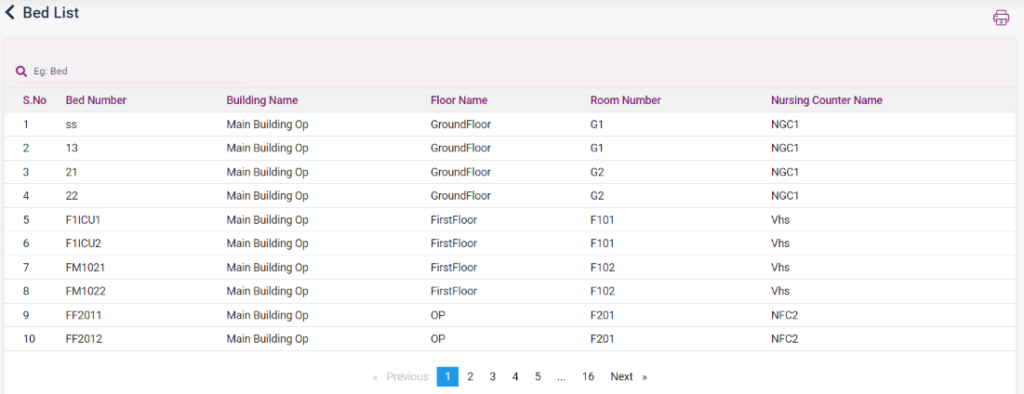
- Bed List: This report shows the list of beds, along with the bed number, building name, room number, floor, and nursing counter.
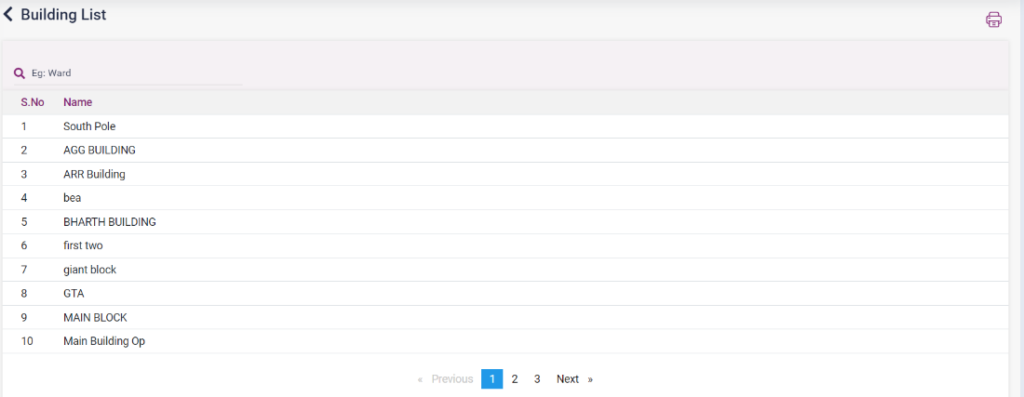
- Building List: The list of building names will be displayed.
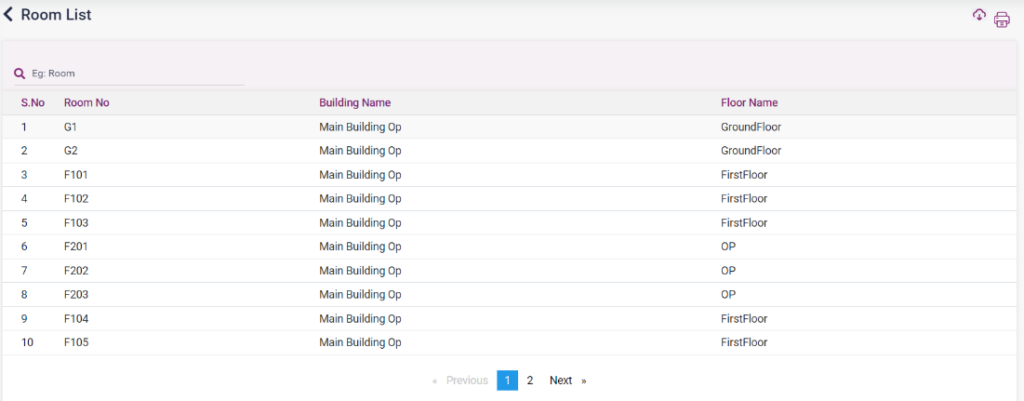
- Room list: The list of rooms, along with the building name and floor name, will be displayed.
- Floor List: The list of floor name and their respective building names will be displayed.
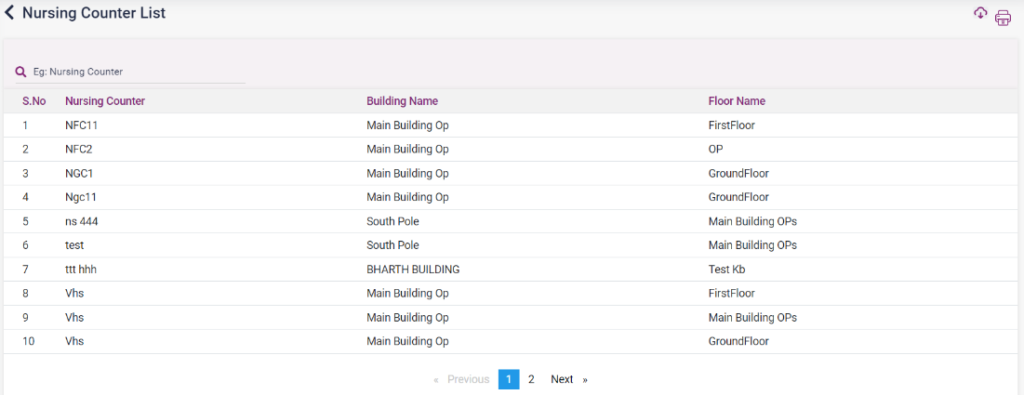
- Nursing Counter List: This report shows the list of the nursing counter along with the building name and floor name.
- IP Statistics Report: The count of reports according to the selected report type will be displayed.
14.5. Ward List

14.6. Bed List
14.7. Building List
14.8. Room List
14.9. Floor List

14.9. Nursing Counter List
14.10. IP Statistics List

- Pharmacy Report
- Purchase List: The purchases done in the pharmacy will be displayed in this report along with the GRN date, supplier details, invoice details, and amount.
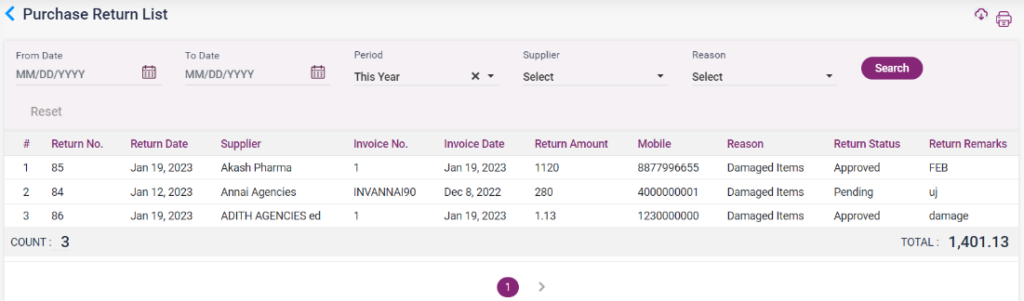
- Purchase Return List: The return done from the purchases will be displayed in this report with return details, supplier details, invoice details, amount, status, and remarks.
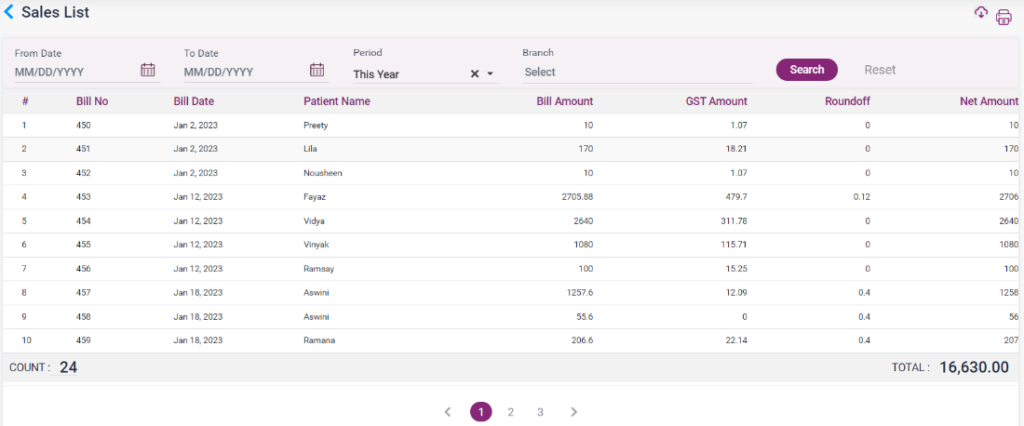
- Sales list: The list of sales that happened from the pharmacy, along with the bill details, patient name, and the amount, will be displayed in this report.
- Sales Return List: The list of returned sales details with the bill details, patient name, and amount will be displayed in this list.
- Consolidated Sales List: In this report, the list of sales in the pharmacy according to the category, product name, and the manufacturer will be displayed. The report can be sorted based on the Quantity and Amount in the Report type field.
- Consolidated Purchase List: This report displays the list of purchases done in the pharmacy with product details, supplier details, quantity, and amount details. The list can be sorted based on the supplier or date.
- Closing Stock List: The closing stock report displays the number of unsold goods remaining in the pharmacy on the date of the search. The details are drug name, quantity, batch number, purchase, and sales details.
- Stock Update History: The list shows the updation that happened in the stock, whether the product has increased or decreased.
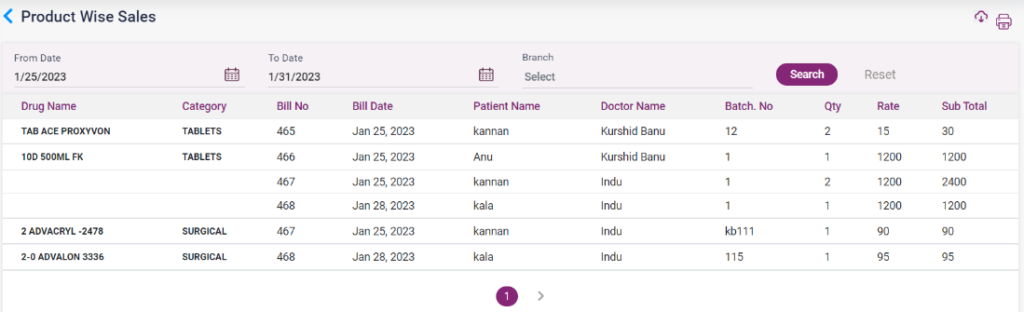
- Product Wise Sales: The list of sales of a particular product will be shown in this report.
- Schedule Report: The list of medicine according to the medicine type, along with the doctor name who prescribed it and the patient who has taken the medicine, will be displayed in this report.
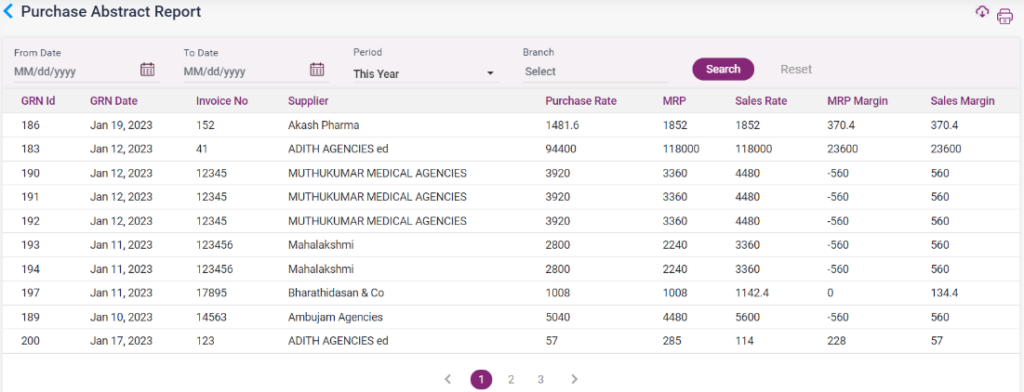
- Purchase Abstract Report: The purchase is made from a supplier, along with the MRP margin, sales margin, purchase rate, and sales rate will be displayed in the report.
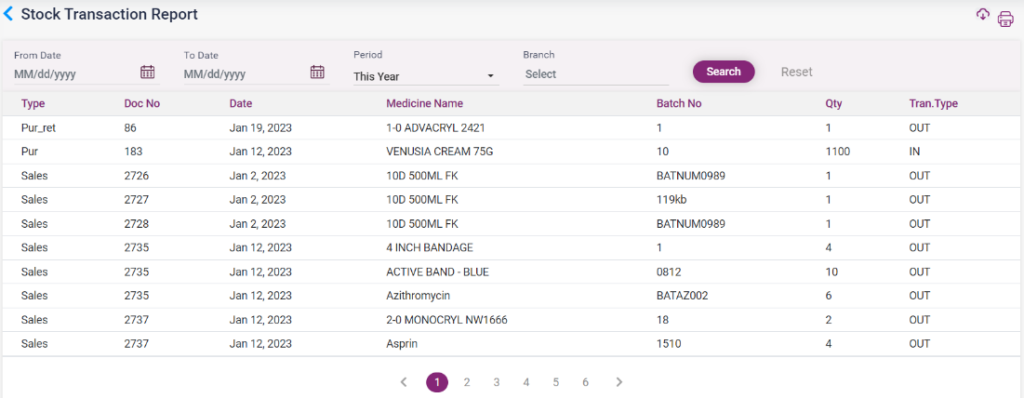
- Stock Transaction Report: The list of medicines with transaction type, batch name, quantity, and date.
14.11. Pharmacy – Purchase Report

14.12. Pharmacy – Purchase Return List Report
14.13. Pharmacy – Sales List Report
14.14. Pharmacy – Sales Return List Report

14.15. Pharmacy – Consolidated Sales List Report
14.16. Pharmacy – Consolidated Purchase List Report

14.17. Pharmacy – Closing Stock Report

14.18. Pharmacy – Closing Stock Report
14.19. Pharmacy – Product Wise Sales Report
14.20. Pharmacy – Schedule Report

14.21. Pharmacy – Purchase Abstract Report
14.22. Pharmacy – Stock Transaction Report
Lab Reports
- TAT Report (Turn Around Time): The TAT report shows the list of lab reports for whom the sample has been collected with collected time, patient name, department name, the sample acknowledged time, result entered time, and the minutes taken to complete every process individually.
- Statistic report: The report shows the list of the patient’s test names and test values, along with the physician’s name.
- Doctor Investigation Revenue Report: In this report, the doctor’s total revenue for prescribing a particular lab service for a patient will be shown. The list displays the patient’s name, test name, and revenue amount.
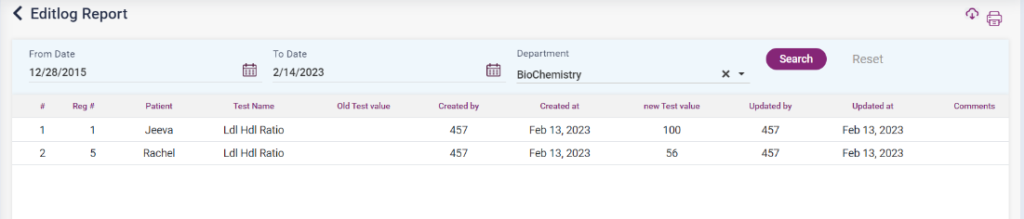
- Edit Log Report: This report shows the list of lab reports in which the result value has been edited. The list displays the old value, the new value, the patient’s name, the test name, and the updated date.
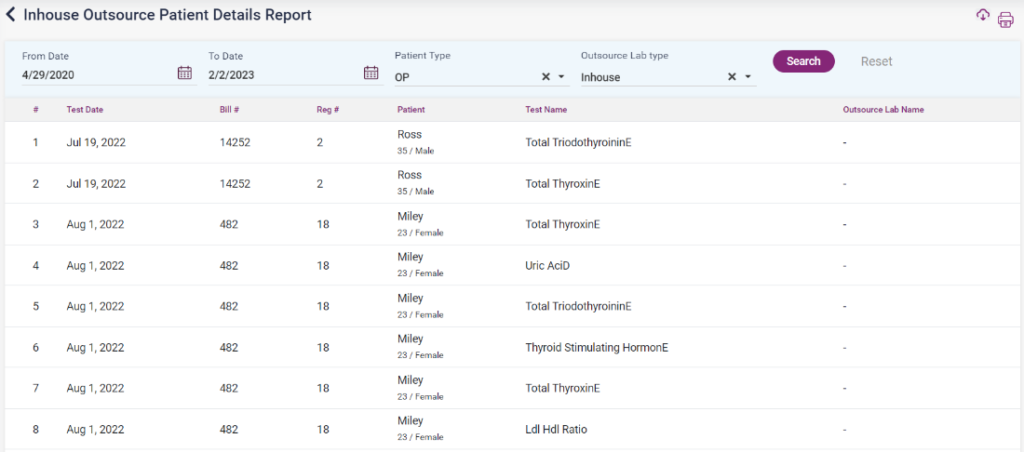
- In-house Outsource patient details report: In this report, the user can filter the lab reports done inside the hospital (Insource) and the lab tests sent to an outside lab (Outsource) with the patient’s name and test name.
- Lab Collection by date: The list of Lab tests with amount details according to the date will be shown in this report.
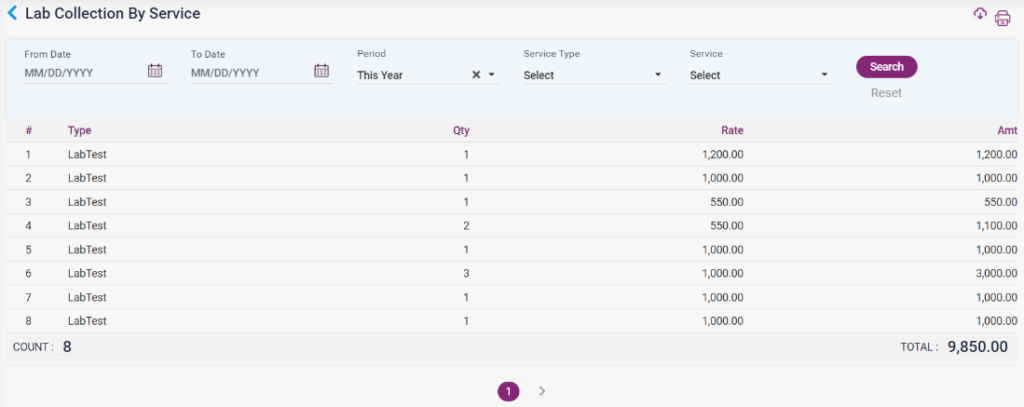
- Lab Collection by Service: The list of Lab tests with the amount according to the service will be shown in this report.
- Lab Revenue Collection: The total revenue from the lab with a patient count, no of tests, department name, and count according to the type of service will be listed in this report.
- Lab Statistical Report (Month-wise report): The statistical report of the lab count will be shown in this report. The user must search by selecting the year and month and typing in the search criteria. According to the search, the results will be displayed.
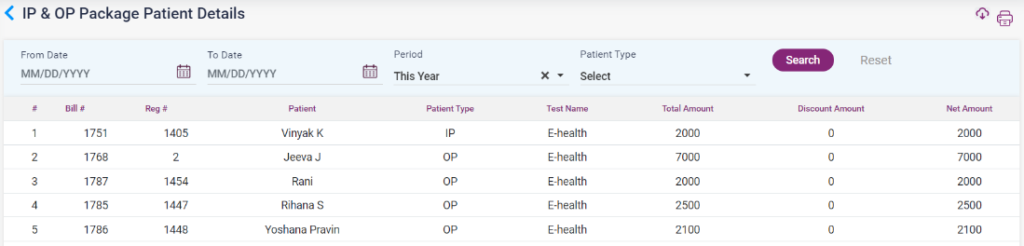
- Patient Package Report: The details of the lab packages which the patient has taken will be displayed in this report. The displayed details will be the patient’s name, reg no, patient type, test name, total amount, discount amount, and net amount.
14.23. Lab – TAT Report

14.24. Lab – Statistic Report

14.25. Lab – Doctor Investigation Revenue Report
14.26. Lab – Edit Log Report
14.27. Lab – Inhouse Outsource Patient Details Report
14.28. Lab – Lab collection by date Report
14.29. Lab – Lab collection by service Report
14.30. Lab – Lab revenue collection Report
14.31. Lab – Lab Statistical Count (Patients Count)

14.32. Lab – Patient Package Report
- Collection Report
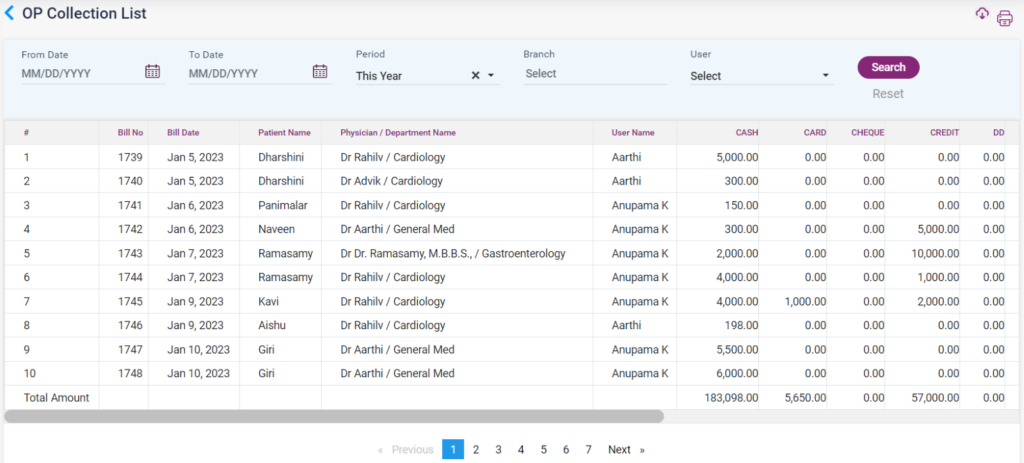
- OP Collection List: This report shows the list of bills of the patient who used the OP services. The details of the amount paid by cash, card, cheque, credit, and DD will also be displayed.
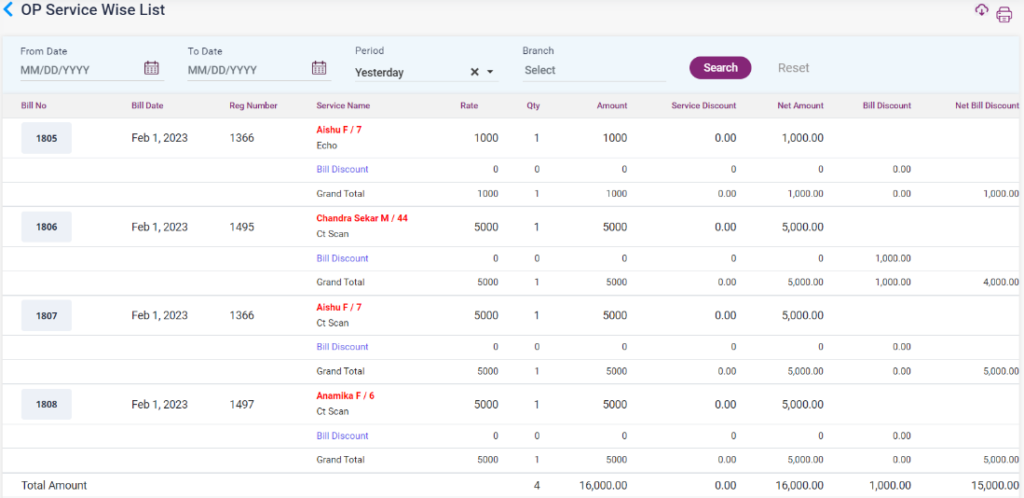
- OP Service Wise List: The list shows the details of patients with the service name, amount of the service, service discount, bill discount, and total amount.
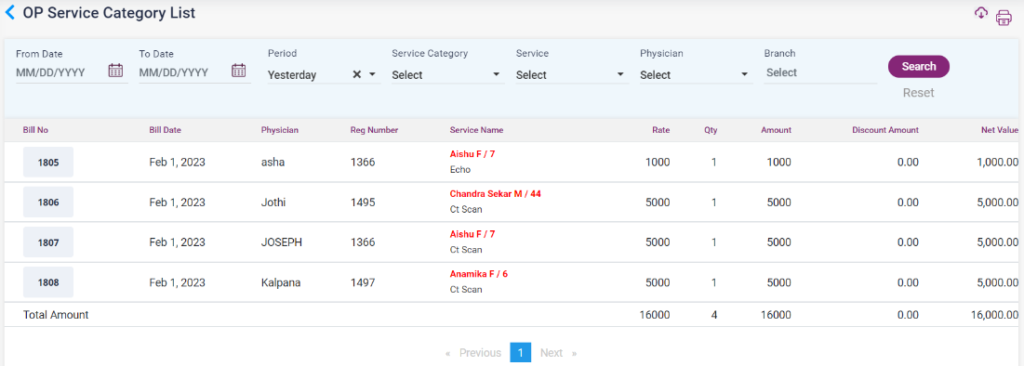
- OP Service Category List: This report shows the list of services the patient uses with the physician’s name and the bill amount details.
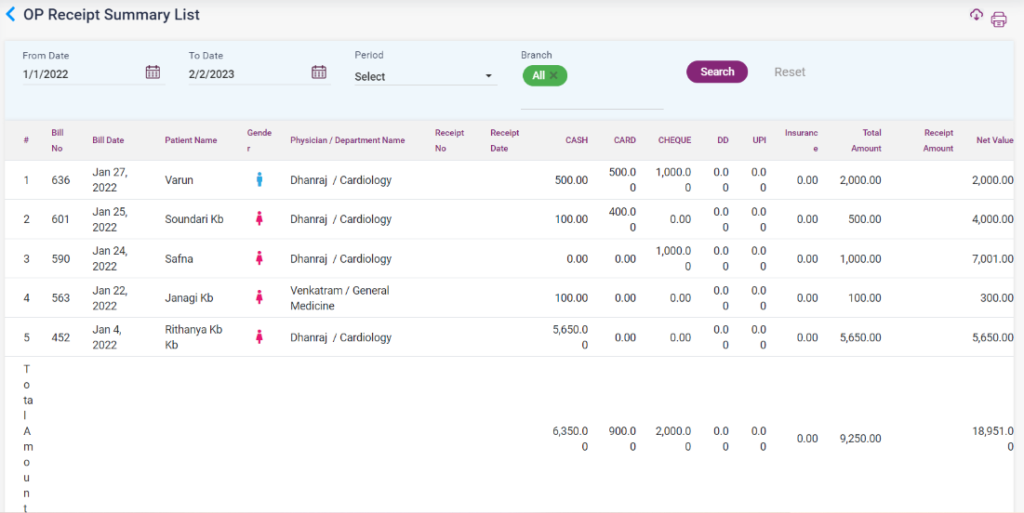
- OP Receipt Summary List: The list of receipt bills provided to the patients who paid the credit bill amount will be shown in this report.
- OP Bill Cancelled List: The canceled OP bills will be displayed in this list.
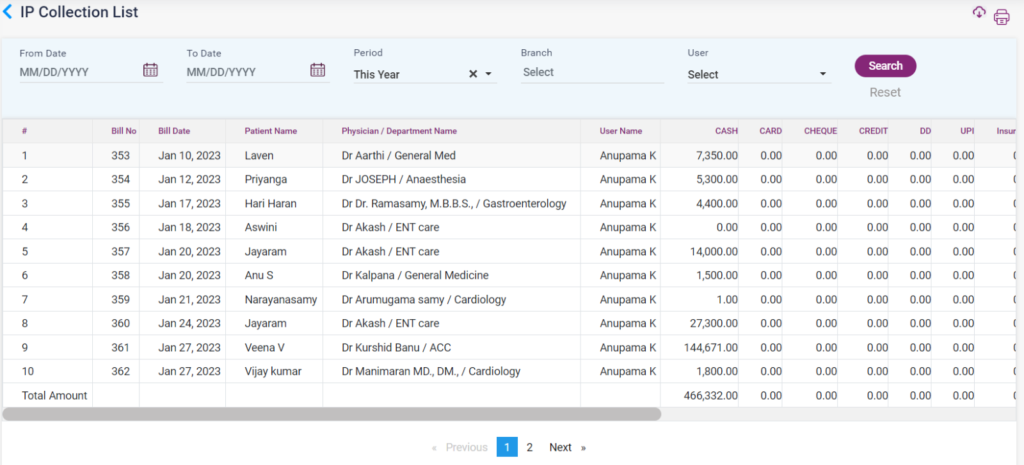
- IP Collection List: This report shows the list of bills of the patient who used the IP services. The details of the amount paid by cash, card, cheque, credit, and DD will also be displayed.
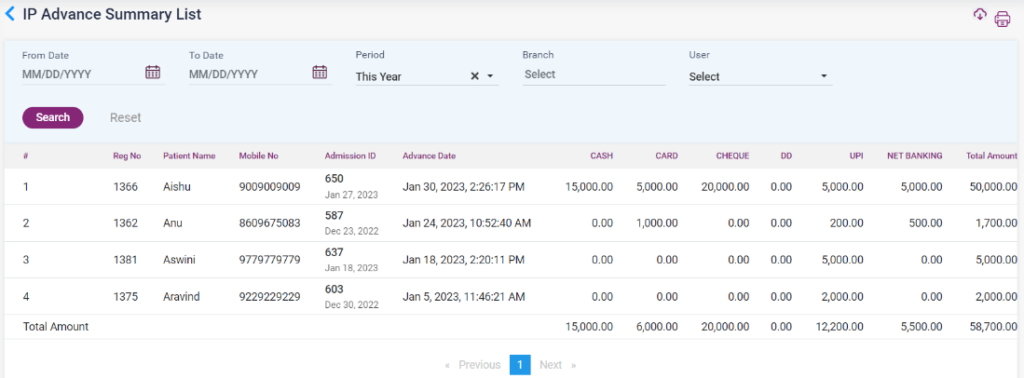
- IP Advance Summary List: The IP advances paid with the patient name, advance given date, admission ID, and the modes of payment with cash will be displayed in this list.
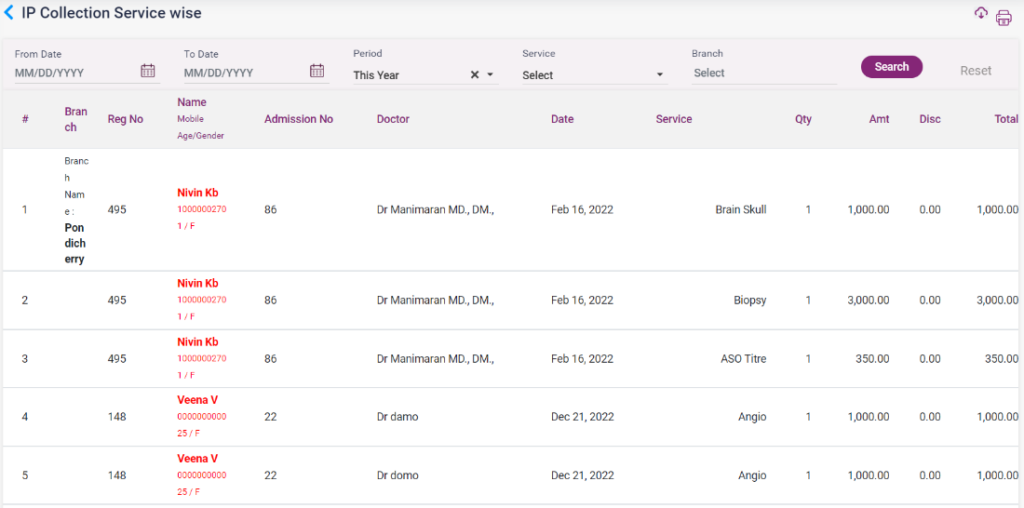
- IP Collection Service Wise: The list shows the details of patients with the service name, doctor name, admission number, amount, and discount amount.
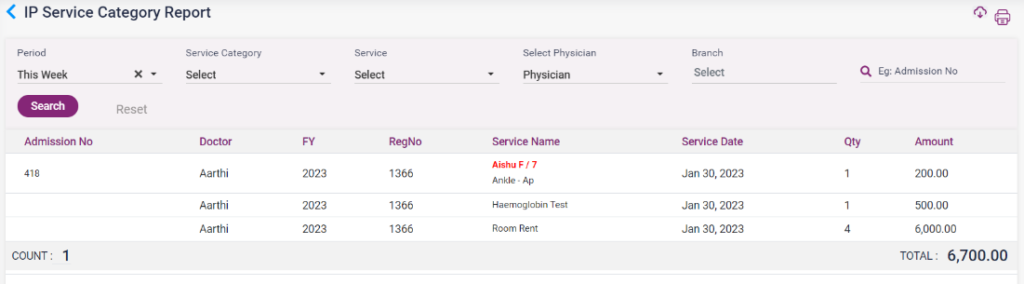
- IP Service Category Report: The list of services, service given date, quantity, amount, the doctor who prescribed the service, reg no, and admission number will be displayed in this report.
- IP Unbilled Service Report: The report shows the list of services added for an IP patient for which the bill is not paid. The unbilled services of the IP patient with patient details, doctor details quantity of the services with the discount amount, and net amount.
- IP Unbilled Service Category Report: The report shows the list of services added for an IP patient for which the bill is not paid. The unbilled services of the IP patient with patient details, doctor details, service name, service date, quantity, and amount.
- IP Advance Cancel Summary List: The list of patients whose advances are canceled will be shown in this report.
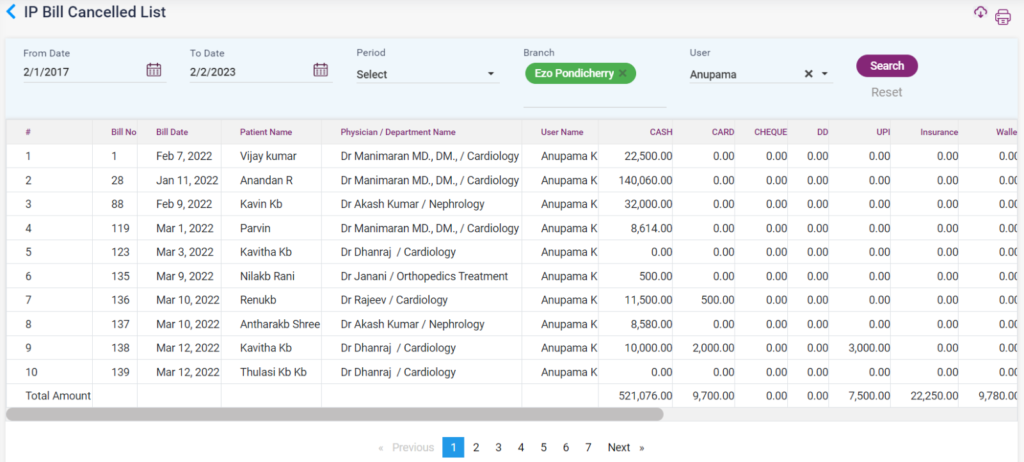
- IP Bill Cancelled List: The canceled IP bills will be listed in this report.
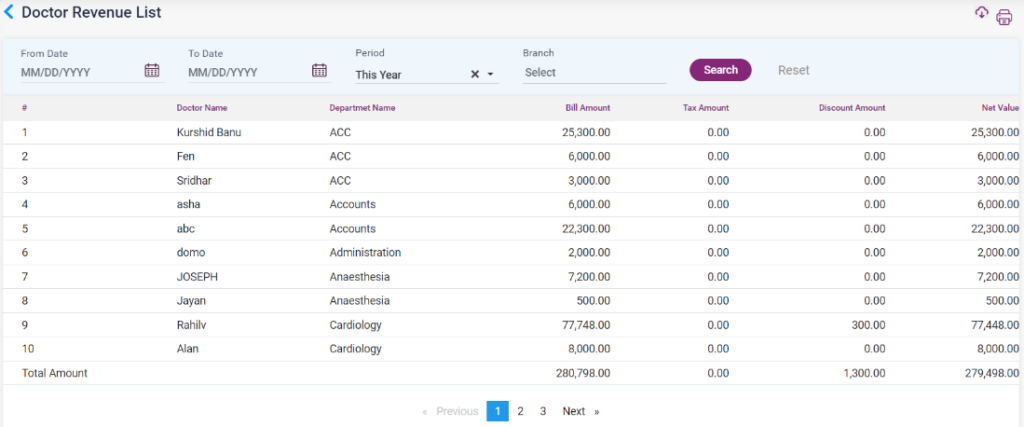
- Doctor Revenue List: The revenue for the doctors with their name and department, bill amount, discount amount, tax amount, and net value will be displayed.
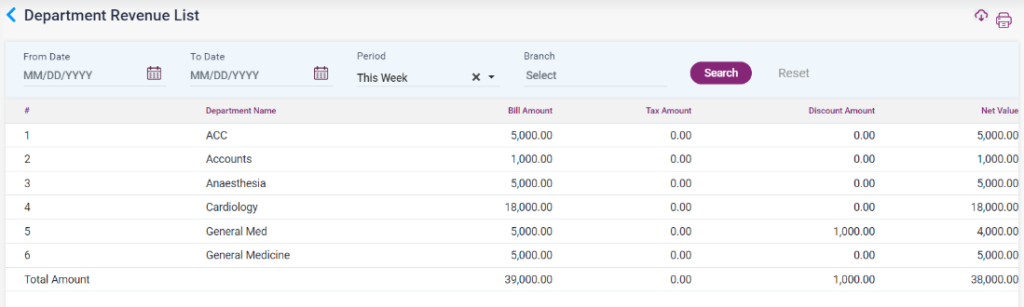
- Department Revenue List: The revenue for the particular departments with department name, bill amount, tax amount, discount amount, and net value will be shown in this report
- Overall Collection Summary:
- The consolidated summary tab will display the date with the module and the revenue via cash, card, online, insurance, credit wallet, cheque, net banking, and the total amount.
- In the detailed summary tab, the above-given details, along with the user’s name, will be displayed.
14.33. Collection report – OP Collection List Report
14.34. Collection report – OP Service Wise List Report
14.35. Collection report – OP Service category List Report
14.36. Collection report – OP Receipt Summary List Report
14.37. Collection report – OP Bill Cancelled List Report

14.38. Collection report – IP Collection Report
14.39. Collection report – IP Advance Summary Report
14.40. Collection report – IP Collection Service Wise Report
14.41. Collection report – IP Collection Service Category Report
14.42. Collection report – IP Unbilled Service Report
14.43. Collection report – IP Unbilled Service Category Report

14.44. Collection report – IP Advance Cancel Summary Report

14.45. Collection report – IP Bill Cancelled List Report
14.46. Doctor Revenue List Report
14.47. Department Revenue List Report
14.48. Overall Collection Summary Report – Consolidated

14.49. Overall Collection Summary Report – Detailed

- CEA Form Report (Clinical Establishment Act Report)
- CEA Lab Register: The details of the patient and the doctor with the lab tests the patient has taken will be displayed in a table form in the report according to the selected date to date and doctor name.
- CEA Imaging Register: The details of the patient and the doctor with the radiology test the patient has taken will be displayed in a table form in the report according to the selected date to date and doctor name.
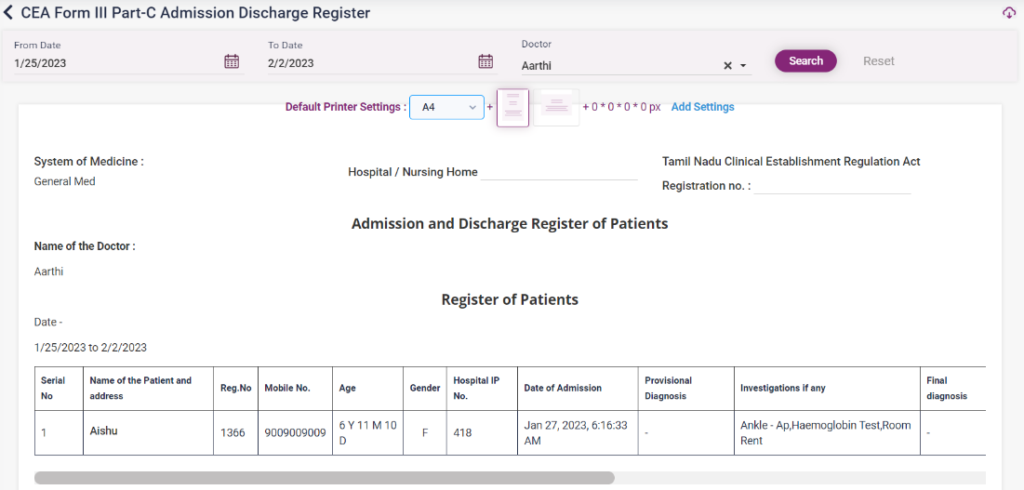
- CEA Admission Discharge: The details of the patient’s admission, the doctor under which the patient is admitted, discharge details, investigations, treatment, and diagnosis will be displayed in a table form in the report according to the selected from date to date and doctor name.
- CEA Patients Register: The list of patients registered under a particular doctor will be displayed in a table form in the report according to the selected from date to date and doctor name.
14.50. CEA Report – CEA Form III Part – A Lab Register

- 14.51. CEA Report – CEA Form III Part – B Imaging Register

- 14.52. CEA Report – CEA Form III Part – C Admission Discharge Register
- 14.53. CEA Report – CEA Form III Part – D Patients Register

- EHR Report
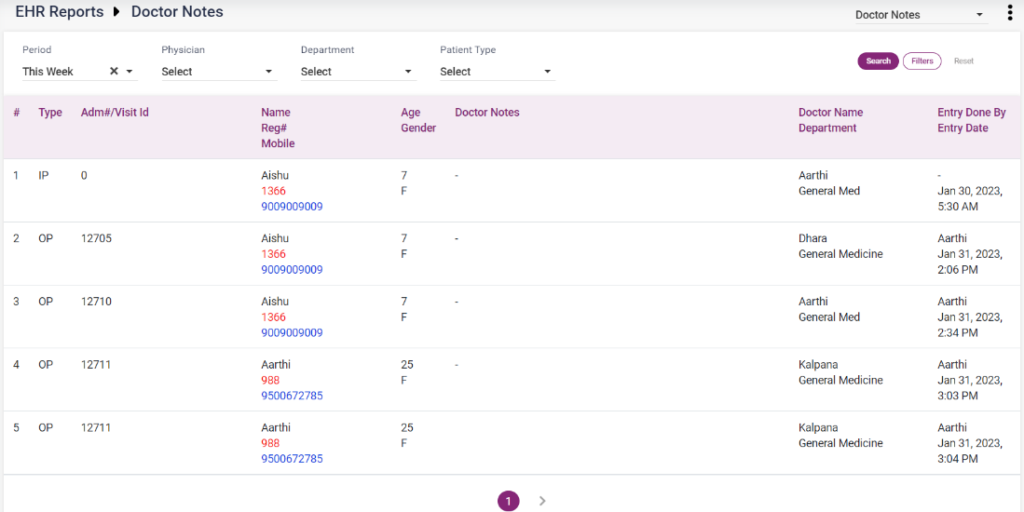
- Doctor Notes: The doctor notes given to the IP patients will be shown according to the search in this report.
- Nurse Notes: The nurse notes given to the IP patients will be shown according to the search in this report.
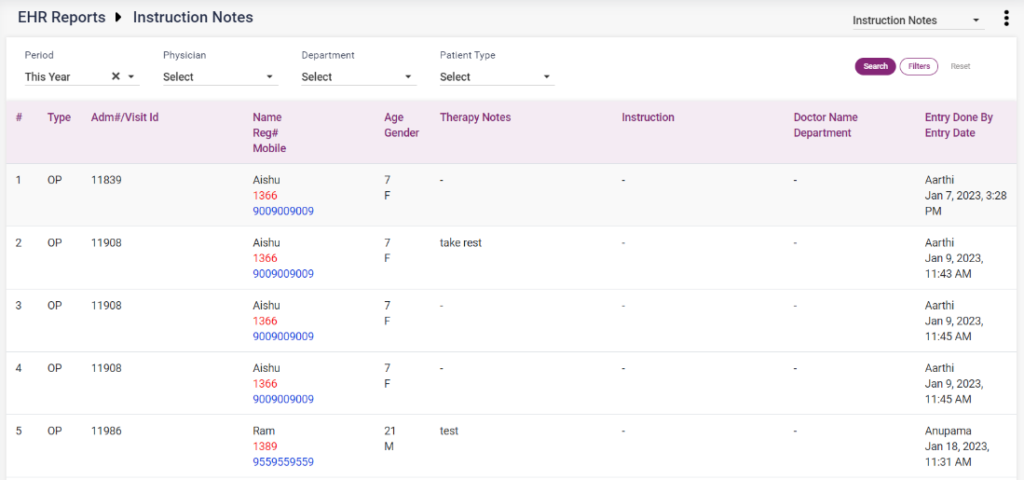
- Instructions: The instructions given to the patients in the EHR will be shown according to the search in this report.
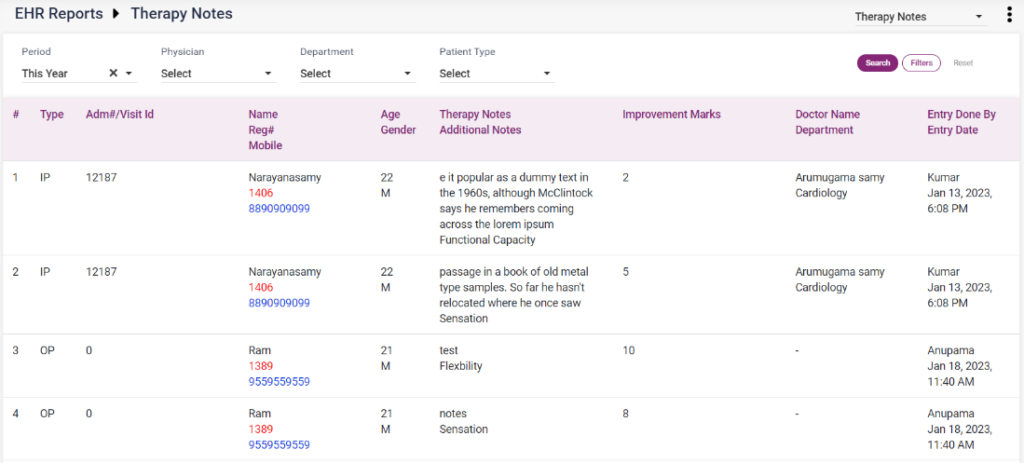
- Therapy Notes: The Therapy notes given to the patients in the EHR will be shown according to the search in this report.
- Vital Charts: The vitals entered for the patients in the EHR will be shown according to the search in this report.
14.54. EHR Reports – Doctor Notes
14.55. EHR Reports – Nurse Notes

14.56. EHR Reports – Instruction Notes
14.57. EHR Reports – Therapy Notes
14.58. EHR Reports – Vital Charts