Stock consists of all the medical resources such as equipment, medicines, and patient health data that are found in the Hospital. Ezovion HMS provides various options to add or view the stock data which include,
I. Stock List
II. Expiry List
III. Opening Stock
IV. Low Stock List
V. Excess Stock List
- Stock List:
- The stock list consists of the details of the stock including the medicine name, expiry date, batch number, total no of stock, generic name (if specified), manufacturer, GST and sell price.
- On clicking the edit icon of a particular medicine, “Stock Details” pop up box is displayed. It has two sections, stock adjustment and selling MRP.
- The user can mark the item as “zero quantity” if stock is not available for a particular medicine in the stock adjustment section and click save. Selling MRP of the particular medicine can be changed in this section
- The medicine available can be searched by “Medicine Name”, “Medicine Category”, “Medicine Manufacturer” and “Generic Name”.
- According to the search criteria the stock details will be displayed.
- On purchase or sales of a medicine, the stock list will get updated automatically.
Screenshot:
11.29. Pharmacy- Stock List

- Expiry List:
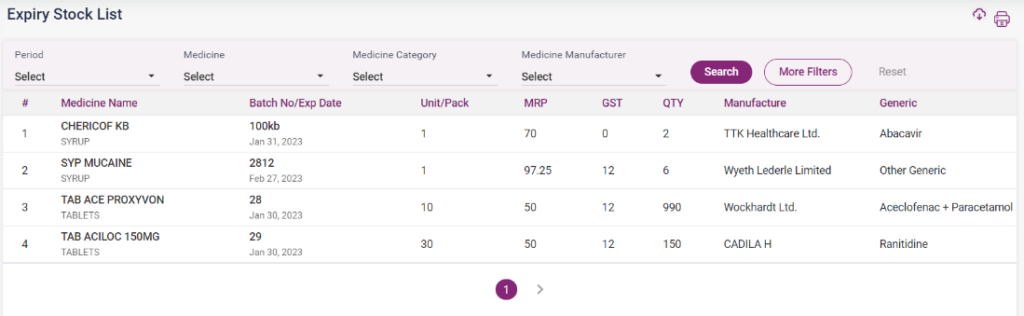
- The expiry list consists of the stock which are nearing the expiry date.
- The expiry list search shows the details of medicine with expiry date in “The current month”, “Next two months”, “Next three months”, “Next six months”, “Next one year”, and “more than a year”.
- The expiry list of medicine can also be searched by “Medicine Name”, “Medicine Category”, and “Medicine Manufacturer”.
- Click on More filters, “Generic name” search will be displayed. The user can search by the generic name also.
11.30. Pharmacy- Expiry List
- Opening Stock:
- Opening Stock is the Amount and value of materials that a company has available for sale or use at the beginning of an accounting period.
- Opening stock in Ezovion HMS lists out the stock details, including, Medicine Name, Batch number, Expiry date, GST total, Cost price, Selling price, MRP, Quantity in units, Unit cost price, Unit sell price and the unit MRP.
- The user can add opening stock by clicking on the “Add Opening Stock” button.
- On clicking, directs to the “Add Opening Stock details” page.
- Select the medicine name from the list; once selected, the category, units and GST Total will be loaded automatically.
- Enter the batch number, Expiry date, cost price, MRP price, Sell price, Quantity in strips, Quantity in units.
- Once the details above are entered, the net quantity, cost price per unit, sell price per unit and MRP price per unit will be calculated and displayed.
- Click the Save button to add the medicine to the stock list. Click the Cancel button to cancel the entry and return to the previous page. Click on the Reset button to clear the details entered.
- The medicines in the added stocks list will be added in the “Opening Stock” s screen.
11.31. Pharmacy- Opening Stock

- Low Stock List
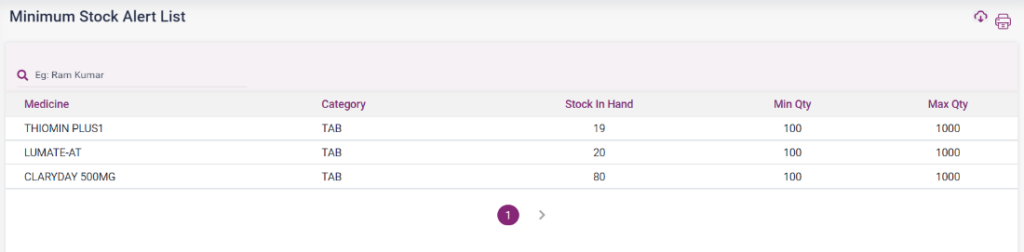
- The minimum stock alert list consists of the list of medicines which are nearly running out of stock.
- The low stock indicates the stock which is lower than the minimum quantity which is mentioned in the medicine master.
- The details include “Medicine”, “Category”, “Stock in hand”, “Minimum quantity” and “Maximum quantity”.
- The medicines can be searched using the search field also.
11.32. Pharmacy- Low Stock List
- Excess Stock List
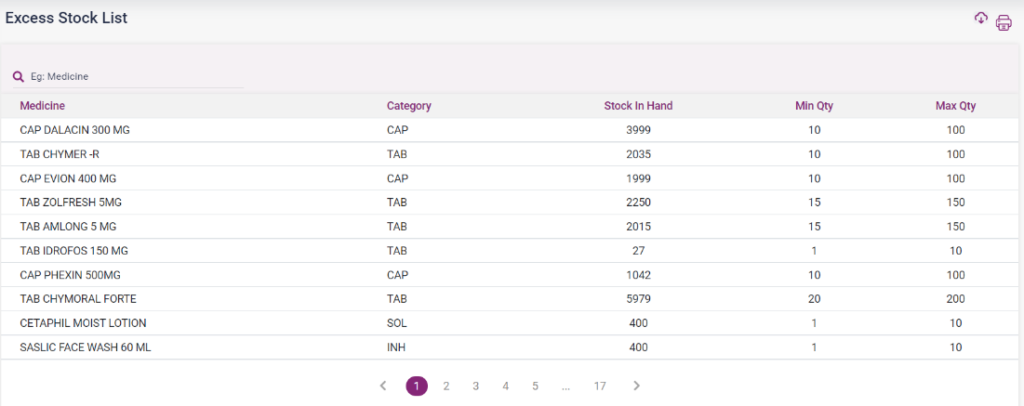
- The excess stock list contains the list of medicines which are more than the maximum quantity of the medicine mentioned in the medicine master.
- The details include “Medicine name”, “category”, “Stock in hand”, “Minimum quantity” and “maximum quantity”.
- The medicines can be searched using the search field also.
11.33 Pharmacy- Excess Stock List